Describe a home, like 3 bedrooms, 1,300 sq ft, and get a proposal of rooms. You accept it or throw it away; your plan does not change until you accept.
This needs Pro.
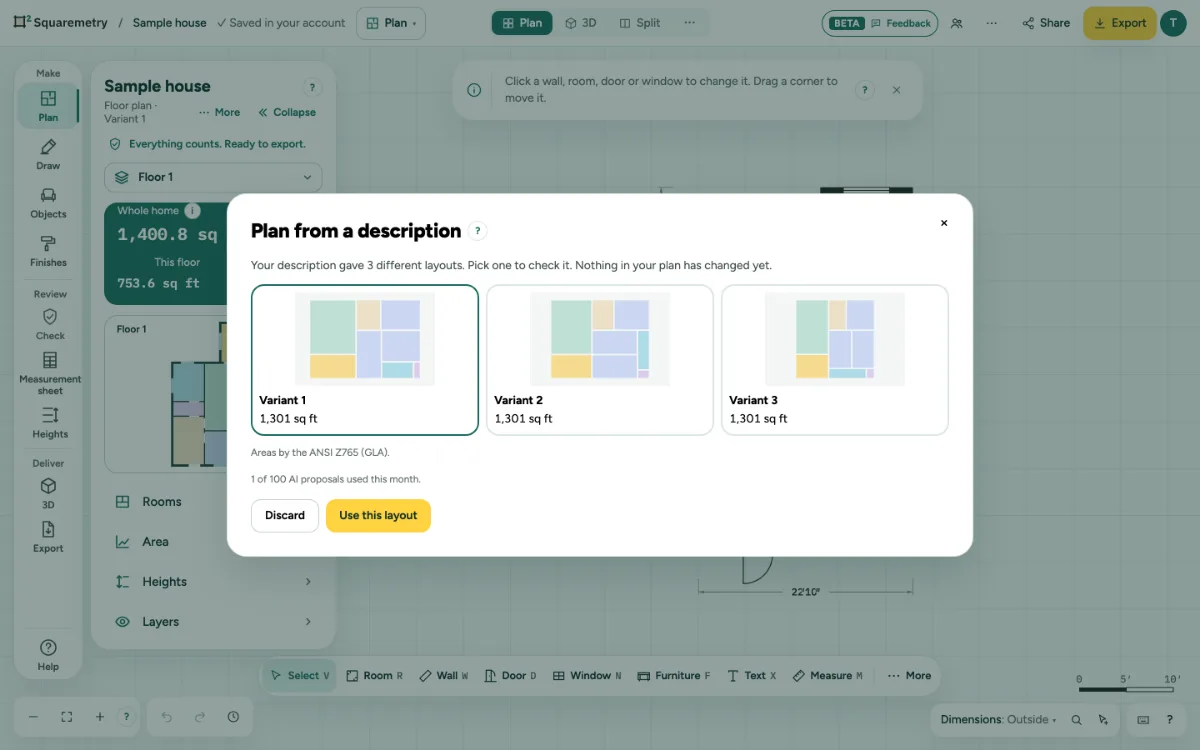
Plan from a description (AI): step by step
1. Open it
Click … at the top right, open File and choose Plan from a description (AI)…, or search it with ⌘K.
2. Describe
Type the Description and click Make a proposal.
3. Pick a layout
Often you get up to three different layouts side by side, each with a small drawing and its area by the standard of your plan. Pick one with the mouse or with the arrow keys, then click Use this layout or press Enter. With only one layout you go straight to the proposal.
4. Check the proposal
You see the rooms, the area against what you asked, and notes about narrow rooms. Other layouts takes you back to the choice.
5. Accept or discard
Accept proposal adds the rooms as walls you can edit. Undo takes it away in one step. Discard changes nothing.
Messages you may see
- AI proposals and AI answers are part of Pro. Sign in, then take Pro in Settings. With a free account, Ask the norm already finds the matching parts of our guides. Drawing and all numbers stay free.
- AI proposals and AI answers are part of Pro. Your subscription does not include them. Ask the norm still finds the matching parts of our guides for free. Drawing and all numbers stay free.
- AI has reached its limit for today. Nothing was changed. Please try again tomorrow, or draw the plan yourself.
- You have used all 100 AI proposals of your subscription this month. Nothing was changed. You can draw the plan yourself, or try again next month.
- No connection. Nothing was changed.
- Construction is locked, so the plan was not applied. Unlock it and choose Accept proposal again.
- You are a reviewer in this office: you look, you do not change anything. AI proposals are made by a drafter, an admin or the owner. Ask the norm and the AI help are open to you.