Keep the furniture your office uses in its own library. A buyer without an account can then furnish a copy of a home from that set.
This is for teams. An owner or admin sets it up.
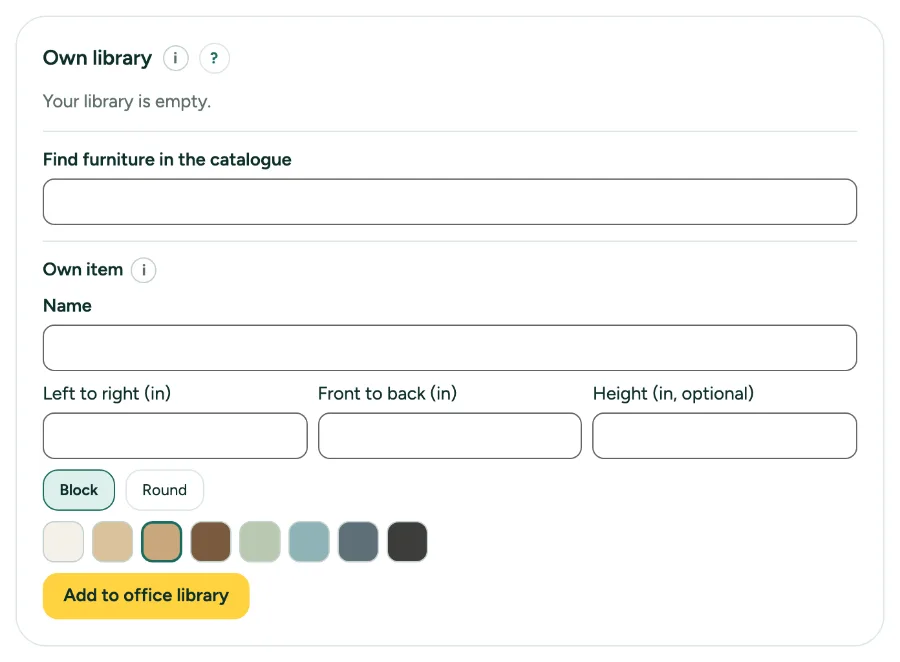
Own furniture library and buyer links: step by step
1. Build the library
In Settings, tab Office, under Own library, search the catalogue, pick an item, give it an own name or size if you like, and click Add to library.
2. Use it
In the editor, the furniture library gets an Office tab.
3. Make a buyer link
Under Buyer links, choose a Home and how many days it works (1 to 30), click Make buyer link and Copy link.
4. What the buyer does
The buyer can place, move and remove furniture from your set. Walls stay as they are. You see the result in your homes with Open result.
Messages you may see
- Add furniture to your own library first: the buyer can only use that.
- In this link you can only place, move and remove furniture.