Pick furniture from the library and click in the plan. Move, turn, group and swap it, and see every piece in the Furniture list.
Furniture: place, change and list it: step by step
1. Open the library
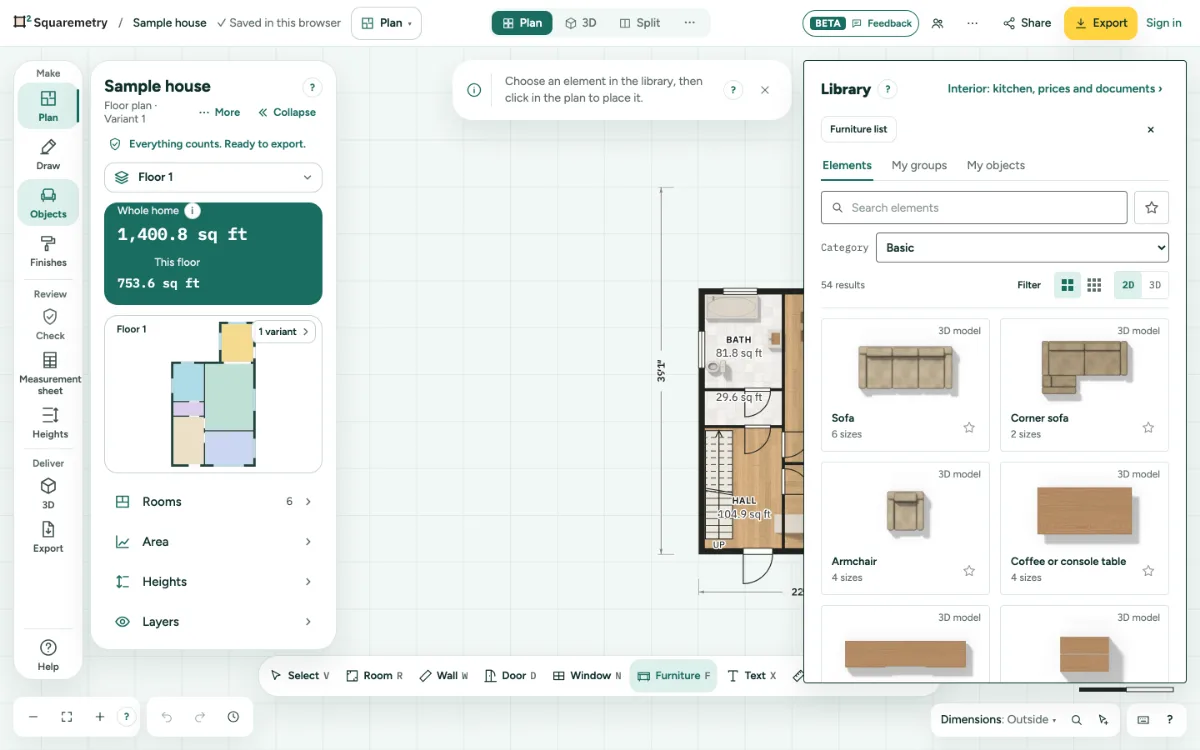
Press F, or choose Furniture. Search by name or size, like sofa 84; part of a word is enough, and German words work too. The star next to search shows only your favorites. Under Category choose Basic, All categories or one kind, with the number of results below. Colour and Fits in are under Filter. Tabs next to Elements: My groups, and in a team also Office.
2. Large or small, 2D or 3D
The two square buttons switch between large and small tiles. 2D shows our drawing, 3D a picture of the 3D model for pieces that have one. Your choice stays in this browser. Nothing found? Click All categories to search everywhere.
3. Place it
Pick an element and click in the plan, in a room or outside it in the garden. Without a mouse, press Enter: it goes in the middle of the view, and the arrow keys move it. It shows as a 3D model in 3D when it has one.
4. Against the wall
Drag or place a piece close to a wall and it stops against the face of the wall, not in it: the corner that sticks in furthest comes onto the face, and a teal line with Against wall shows where. Along the wall it stays on the grid. In a corner it goes against both walls, and a turned piece or a whole group works the same way. Turn a piece that stands against a wall and it stays against it. Hold Alt (Option) to place it freely, also in or through a wall. A curved wall does not hold furniture. On a phone there is no Alt: type X and Y of the middle in the card of the piece. A typed position is always free, also close to or in a wall, and the next drag stops against the wall again.
5. One 3D model per piece
Every piece in the library has its own 3D model at real Dutch sizes: sofas and beds, kitchens with worktop, sink and hob and bathrooms. A wider wardrobe or kitchen gets more doors, not stretched ones. The colours you pick for frame and cover show on the model in 3D.
6. Garden
Under the category Outdoor you find trees, conifers, fruit trees, shrubs, hedges, borders, a veranda, a conservatory, a pergola, a shed, a pool, fences and more. Each has its own size; type a width to make a hedge or fence longer.
7. Change it
Select it to set Width and Depth, Rotate 90°, Mirror, or Duplicate (⌘D). Another piece in its place: choose it in the library. Mirror flips the piece as you see it on the plan, left to right or top to bottom, also when it is turned. Several pieces mirror as one group and swap places.
8. Move and turn with the keys
With a piece selected and the plan in focus, the arrow keys (←↑→↓) move it 1 cm or ¼ in; ⇧←↑→↓ moves 10 cm or 1 in. ⌘← ⌘→ turns it 5° and ⇧⌘← ⇧⌘→ 15°; Q turns a quarter. A group moves and turns around its middle. A kitchen run only turns in quarter turns. A piece may stand outside the rooms too, in the garden or on a terrace; there it counts nowhere. Taps in a row are one step, like Furniture turned 15°. Symbols and text work the same way. Or type any angle under Rotation in the card: the piece is drawn at that angle, in exports too.
9. Height
Each piece has a height from the library. Type your own Height in the panel; Use library height puts it back. The height shows in the isometric view and in 3D. Wall cabinets and wall lights float at their own height.
10. Groups and favorites
Shift+click several pieces and click Group. Save as favourite keeps the group under My groups, in every home. A group holds up to 40 items; with more selected, the card says so and nothing is saved.
11. Furniture list
Click Furniture list at the top of the library. It shows every piece per room and for the Whole home, with size and count; Download CSV takes it along.
Parts on the screen
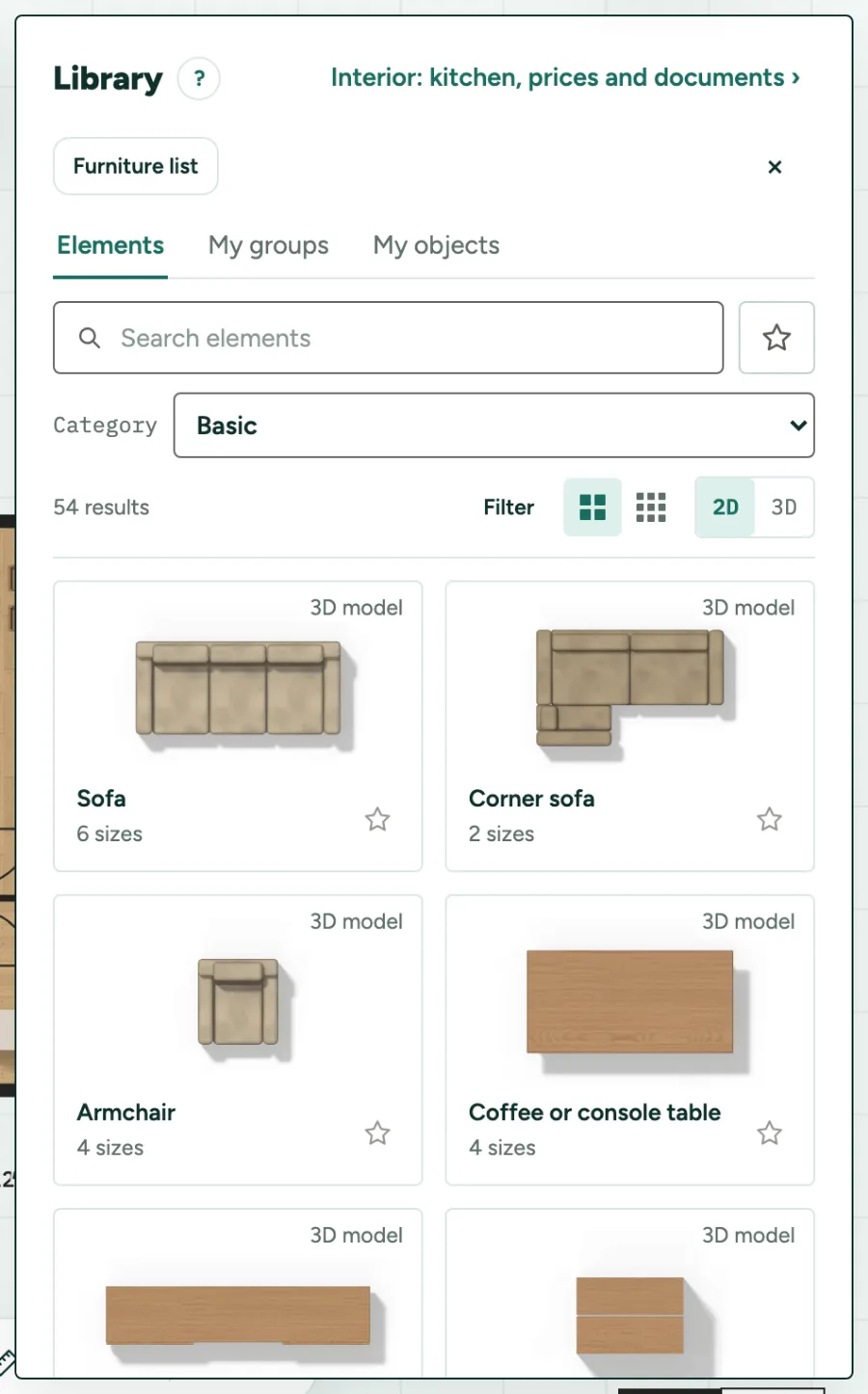
Library. Search by name or size, then pick an element and click in the plan.
Shortcuts
- F
- Furniture
- ⌘D
- Duplicate what is chosen
- ←↑→↓
- Move what is chosen a little (1 cm or ¼ in)
- ⇧←↑→↓
- Move what is chosen further (10 cm or 1 in)
- ⌘← ⌘→
- Turn what is chosen 5°
- ⇧⌘← ⇧⌘→
- Turn what is chosen 15°
- Q
- Turn 90°, or flip a chosen door or window
On Windows and Linux, use Ctrl where the Mac has ⌘.
Messages you may see
- You have 200 favorites. Remove one to add another.