Keep quotes, specifications and photos with a home or a room, with its area next to it. Upload your own 3D model, check its size and place it like any other piece.
Documents and your own 3D models: step by step
1. Add a document
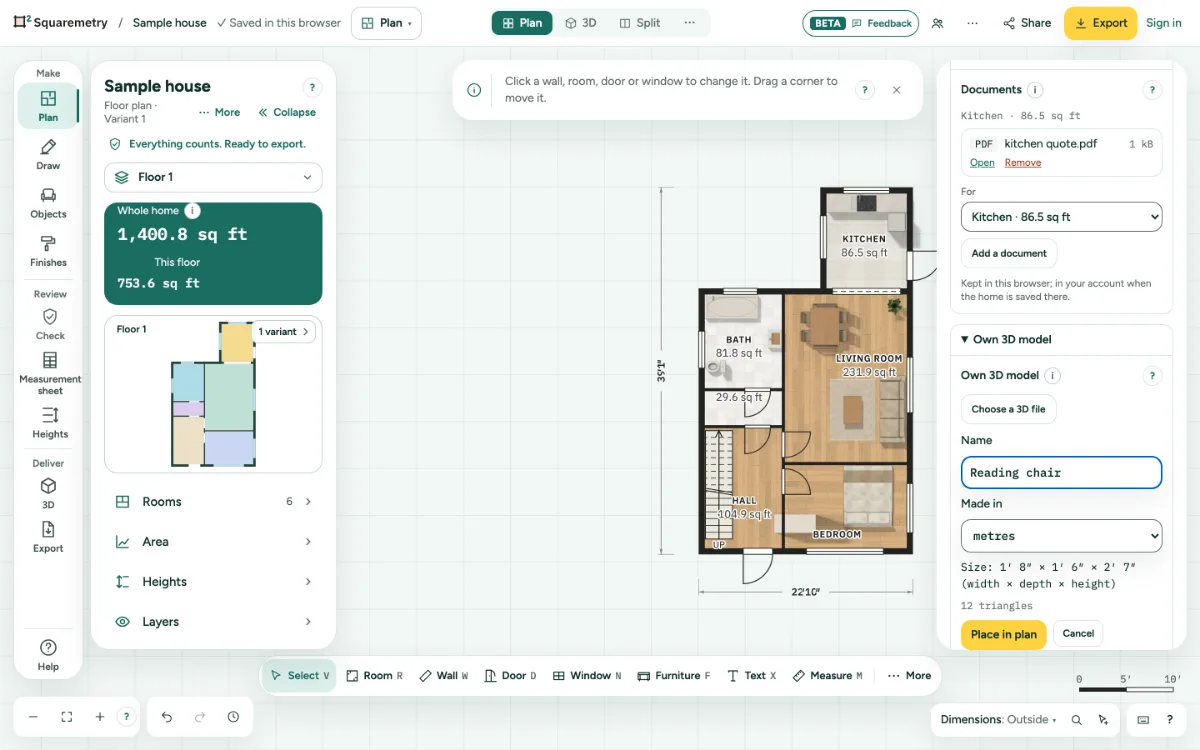
In the Interior panel, open Documents. Under For, choose Whole home or a room; each shows its area. Click Add a document and choose a PDF, JPG, PNG or WebP up to 10 MB.
2. Open or remove it
Click Open to see it, or Remove. Documents are not on the drawing and not in a share link. They stay in this browser, and go to your account when the home is saved there.
3. Upload your own 3D model
Open Own 3D model and click Choose a 3D file: a GLB, OBJ or USDZ up to 20 MB, with at most 200,000 triangles. A USDZ is what scan apps on a phone make (Object Capture or LiDAR): scan the piece there, then load it here; we turn it into a GLB in your browser. We read its size. An OBJ has no unit, so check Made in. A large OBJ and a GLB packed with meshopt are fine; a GLB packed with Draco or Basis is not yet: export it again without compression.
4. Check the size and place it
Check the size (width × depth × height) and fill in a Name. Click Place in plan, then click where it goes. Move and turn it like any piece; 3D shows your model.
5. My objects
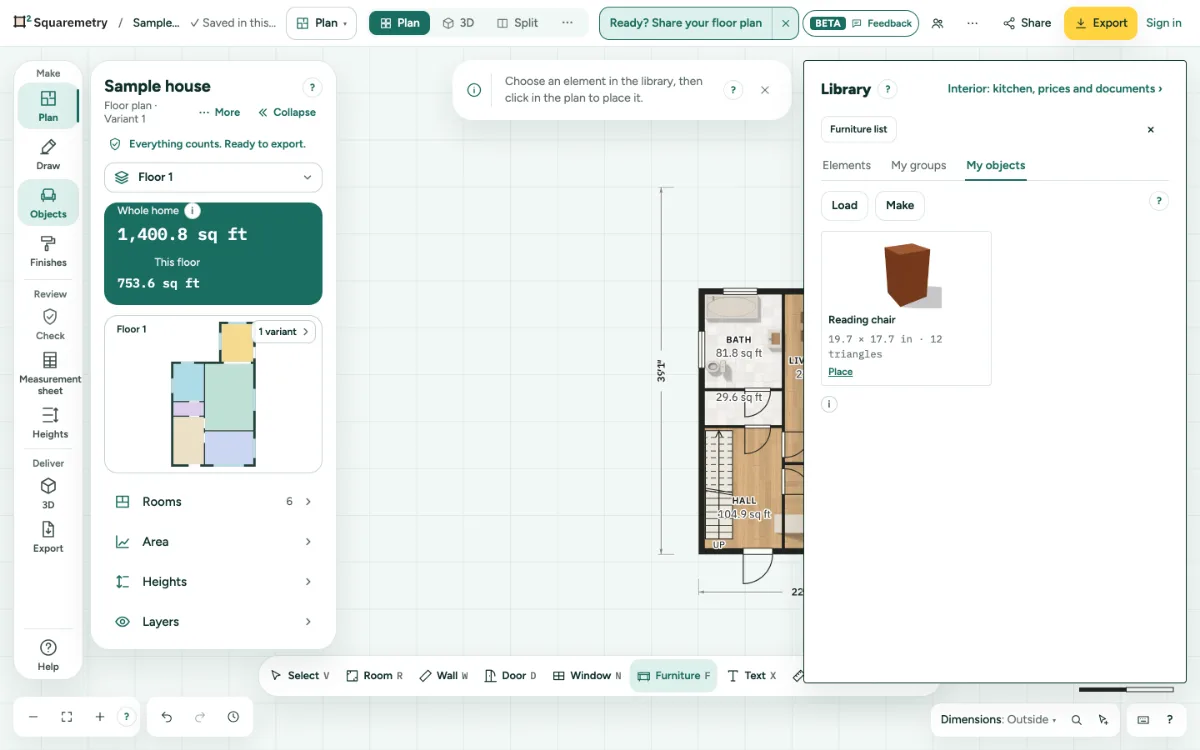
In the library (Objects), the tab My objects lists every model you loaded, with a picture, in every home; signed in, also the models in your account that you loaded on another device. Load opens the upload, Make opens Model to build one yourself. Place puts it in the plan; the plan shows it from above, 3D and AR show the model. Remove takes it out of the list in this browser after one question; the file stays in your account, and where it already stands in a plan, it stays.
6. On another device
When the home is in your account, the file goes along, so 3D shows your model on your other devices too. A view link shows a block of the same size.
Messages you may see
- SVG files are never accepted, because they can contain code. Use a PDF, JPG, PNG or WebP.
- This file is larger than 10 MB. Choose a smaller file.
- This is not a 3D model we can read. Use a GLB (binary glTF), an OBJ or a USDZ file.
- This model uses compression we cannot read yet (Draco or Basis). Export it again without compression.
- This model has 250,000 triangles; we show at most 200,000. Make it lighter and try again.