Give floors and walls a material and colour, use your own photo or a texture from the library, and choose the facade and the roof for the whole house.
Materials and colours: step by step
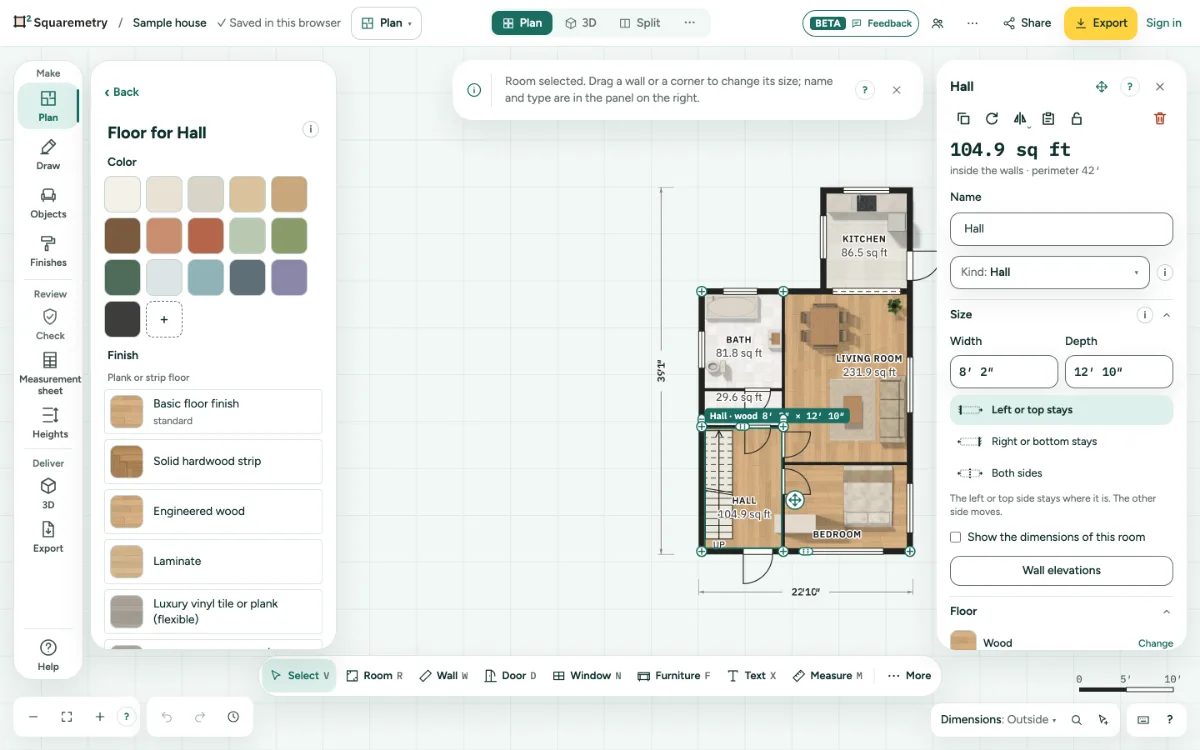
1. Floor
Choose a room. In its card, open Floor: one row with a swatch, the name and Change. Click Change. The library opens on the left with floors only, under a heading such as Floor for Living room. Pick a colour or a floor: it goes on at once, and Undo takes it off again. A colour alone is fine. Back or Esc closes it without changing anything; on a phone it opens in the sheet. A floor from an older plan keeps its look, and the row shows its name.
2. Your own photo or a library texture
The last group in the same library is Own photo. Click Choose a photo (JPG, PNG or WebP, up to 10 MB) or From the library for a free texture. It goes on the floor at once; Undo takes it off again.
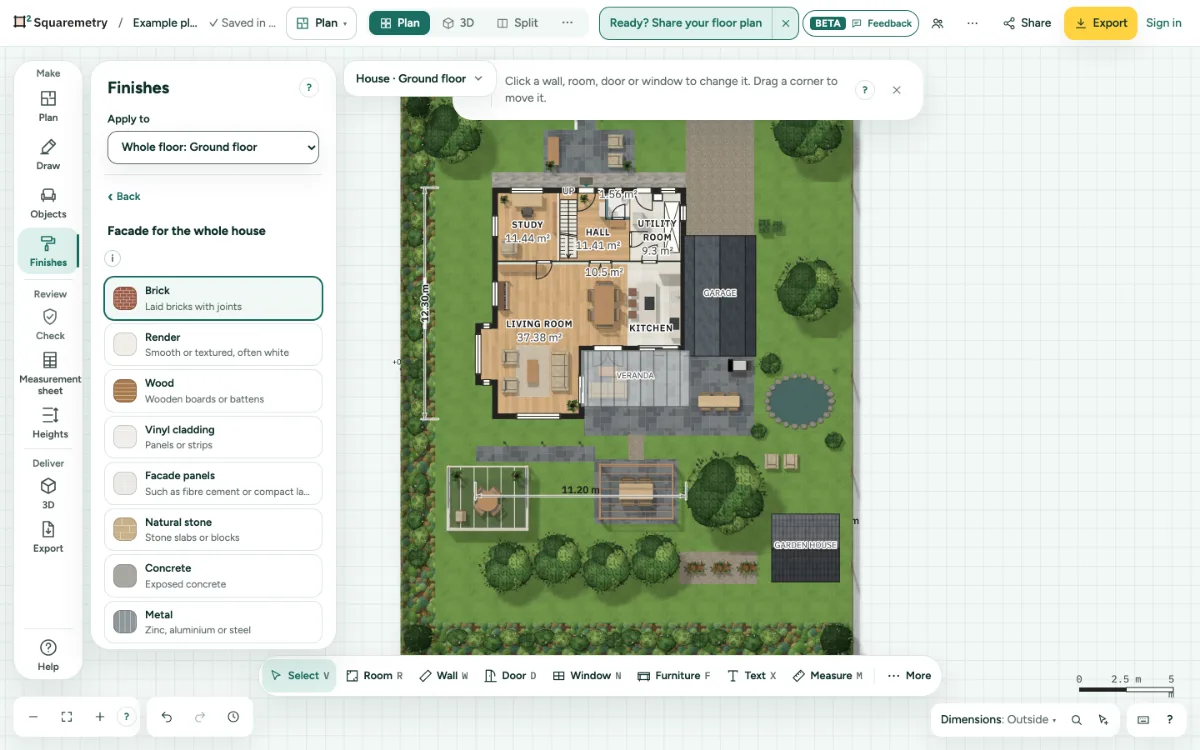
3. Facade for the whole house
Open Finishes in the rail and click Facade. Pick a material: Brick, Render, Wood, Vinyl cladding, Facade panels, Natural stone, Concrete or Metal, then a Colour and a Finish. For brick, Bond is Automatic: a cavity wall gets stretcher bond, a solid one-brick wall English cross bond; you can also pick one. Plinth at the bottom adds a strip in another material. One click sets every exterior wall of the house; an outbuilding keeps its own facade. One undo takes it back. A new plan starts in red brick; set your own under Settings, Facade for a new plan.
4. One wall on its own
Click a wall. On its card, click Outside and pick a material. Same as the house takes your own choice away again. An interior wall has no outside.
5. Roof
Open Finishes and click Roof. Pick Roof tiles red, anthracite or orange for every pitched roof of the house; an outbuilding keeps its own roof. A flat roof is always black EPDM. In 3D the tiles lie in rows with a ridge and a gutter; the elevations show the same colour. No roof yet? Add roof opens the roof of the top level of the house, with the shapes to choose from.
Messages you may see
- This photo is larger than 10 MB. Make it smaller and try again.
- The library could not load. Check your connection and try again.
- Some walls have their own outside. A choice here sets every wall the same.
- No roof yet.