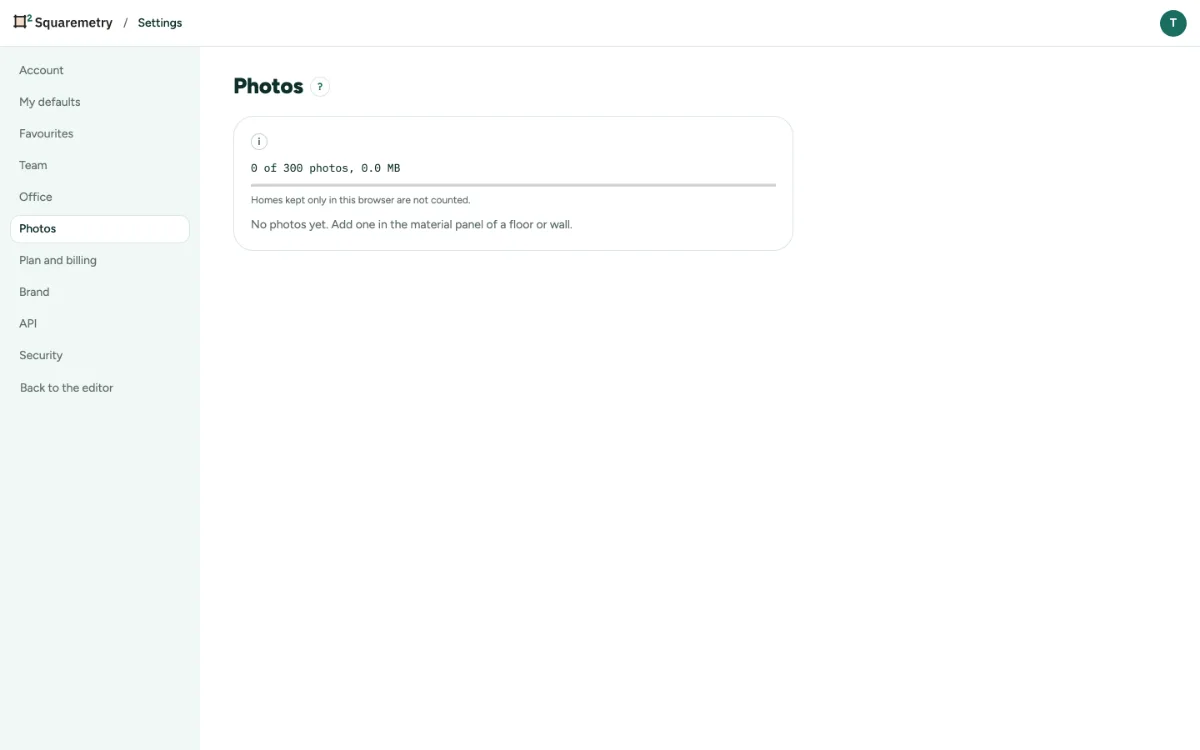
Settings, tab Photos, lists the photos used on floors, areas and walls in this workspace. See where each is used, and remove what you no longer need.
You need a free account for this.
Your photos in the workspace: step by step
1. Open Photos
Open Settings, tab Photos. You see how many photos you have and how much space they use.
2. Find one
Search by name. Each photo says in how many homes it is used.
3. Remove one
Click Remove and confirm. Surfaces keep their color but lose the photo.
Messages you may see
- This workspace has 300 photos, the most it can hold. Remove a photo you no longer use to add a new one.
- Only the person who added this photo, an owner or an admin can remove it.