Put a floor of this plan on top of another home in your account, as a new floor.
You need a free account for this.
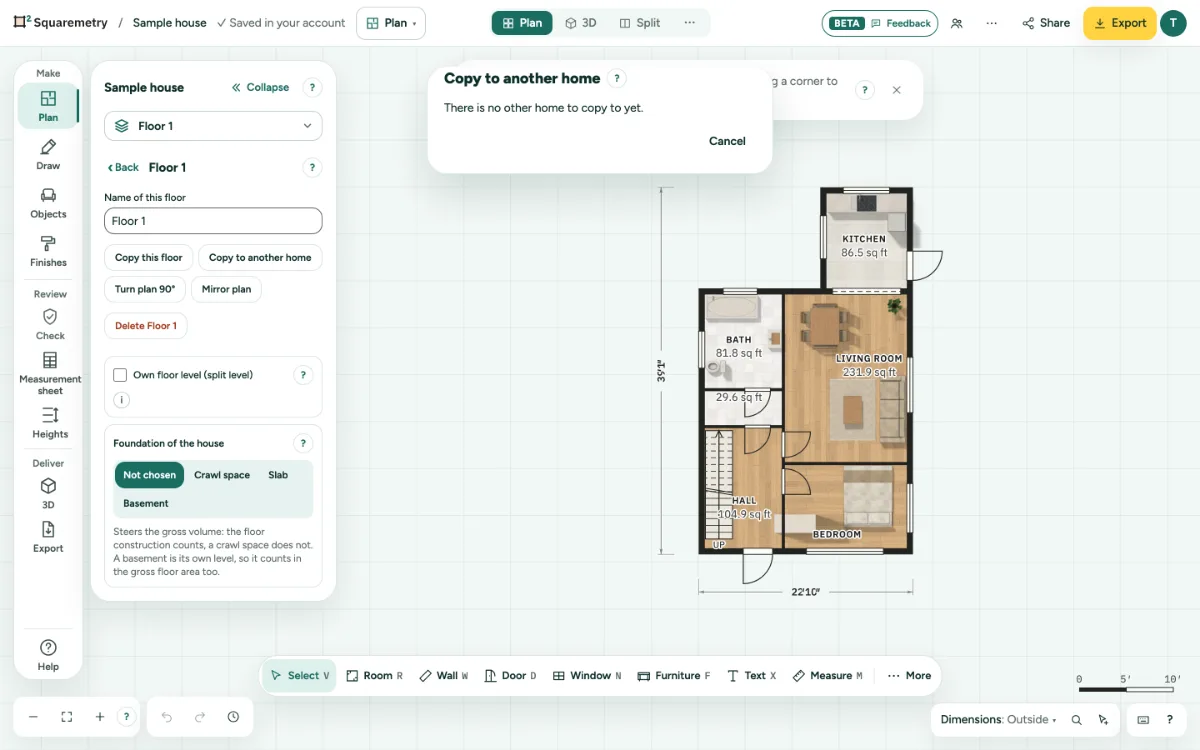
Copy a floor to another home: step by step
1. Open the floor
At the top of the left panel, click More, then This floor and Copy to another home.
2. Choose what
Choose The whole floor, with its variants, or only the variant you work on.
3. Choose where
Pick the home under To and click Copy. That home keeps a version from before. The copy becomes the new top floor of that house, one storey above its top floor and not above a garage, and the roof of that house moves up to it. A floor from an outbuilding becomes a floor of the house. On the copy, a stair becomes a manual stair, and a stairwell whose stair stays behind becomes a separate opening with its own shape.
Messages you may see
- Save this plan in your account first.
- There is no other home to copy to yet.
- That home already has 40 floors.