An AI assistant that speaks MCP, like Claude or ChatGPT, can work out floor areas for you without an account. Signed in, it can also find, read and export your plans, make an area report and, if you allow it, do everything the editor does: draw, change and remove. It has your rights, never more.
You need a free account for this.
Connect an AI assistant to Squaremetry: step by step
1. Add the address in your assistant
Settings, API shows two addresses under Connected AI assistants: one to calculate without signing in, one for your plans. Add one as a connector in your assistant; How to connect it opens the steps for Claude, ChatGPT, Cursor and VS Code.
2. Ask for an area
Type your room sizes, like 4 by 5, 3 by 3 and 6 by 4. The assistant gives the area under the measuring instruction or ANSI Z765 with the rule set and its version, and a link that opens exactly those rooms in Squaremetry, with your sizes inside the walls. The link has no names.
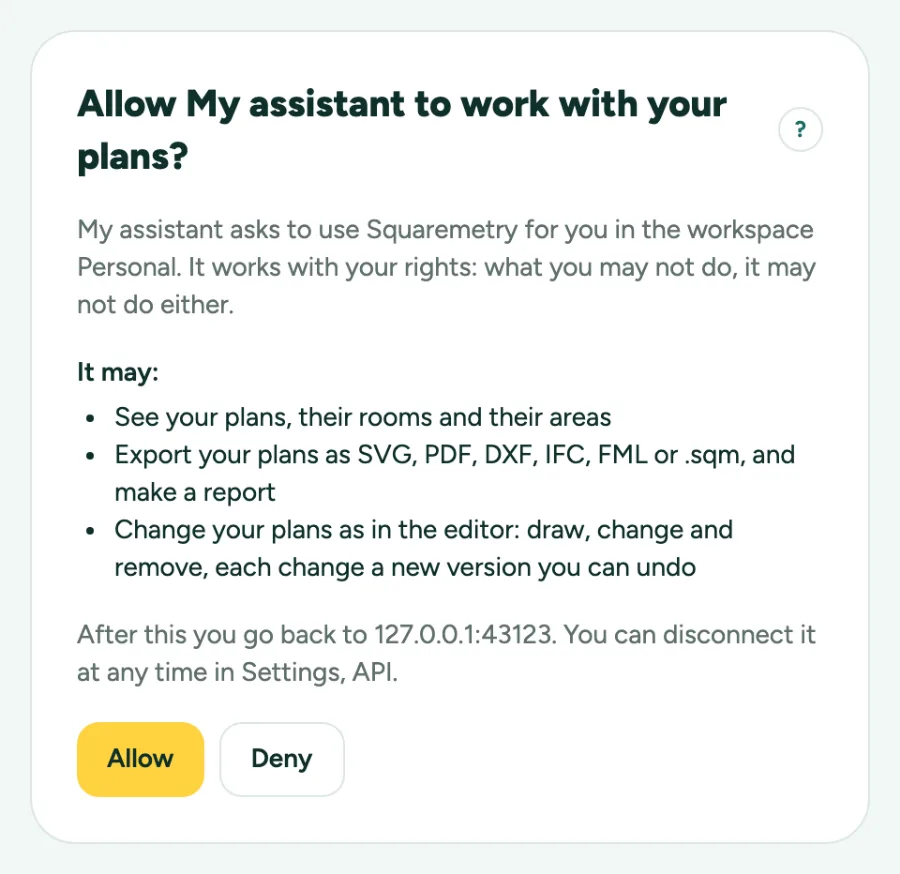
3. Check and allow
For your plans the assistant sends you to Squaremetry to sign in. You see which assistant asks, in which workspace and what it may do: the first time, read and export. Click Allow or Deny, and you go back to the assistant.
4. Ask about your plans
The assistant finds your plans by name, reads one with every room and its area, and exports a floor as SVG, PDF or DXF, or the whole plan as IFC, FML or the open .sqm file. It also makes an area report as PDF. SVG, PDF, DXF, IFC and the report need Pro, Team or an unlocked home, and FML needs Pro, Team or a home with the measurement report, as in the editor; the .sqm file and the listing data work on every plan.
5. Changes need your permission
The first time the assistant wants to change a plan, it asks again and you allow changes separately. Every change is saved as a new revision; the earlier one stays in Versions. Your webhooks get plan.changed with the action changed_by_assistant.
6. Let it draw
The assistant can do what the editor does: walls and rooms, doors and windows, stairs, a roof, the facade and roof tiles, furniture, finishes, Model and Sheets. It finds the action with list_actions, runs one or a short series with do_action, and looks at the result with render_plan as a picture from above, in 3D, as an elevation, a section or at eye level. It can also start from a Dutch address (the house from open data, with the plot and north) or from a DXF drawing. If one action fails, nothing changes. undo_last takes its last change back.
7. Sharing and settings only when you say yes
If you allow it, the assistant can make or end a view link (it must ask you first and name the plan exactly), read and change My defaults and your favourite settings, and send feedback or vote on the wishlist in your name after you confirm. Each of these is a separate permission it asks for when it needs it.
8. Disconnect
Settings, API lists your connected assistants with the last time they were used. Disconnect stops the assistant at once. A sign-in lasts one hour and renews itself while the assistant keeps working, up to 30 days without use.
Messages you may see
- This request has expired or was already used. Start connecting again in your assistant.
- No assistants connected.