With Team, your colleagues sign in with the identity provider of your office (SAML 2.0) instead of a code by e-mail. Whoever signs in with an address of your domain joins the office as a drafter.
This is for teams. An owner or admin sets it up.
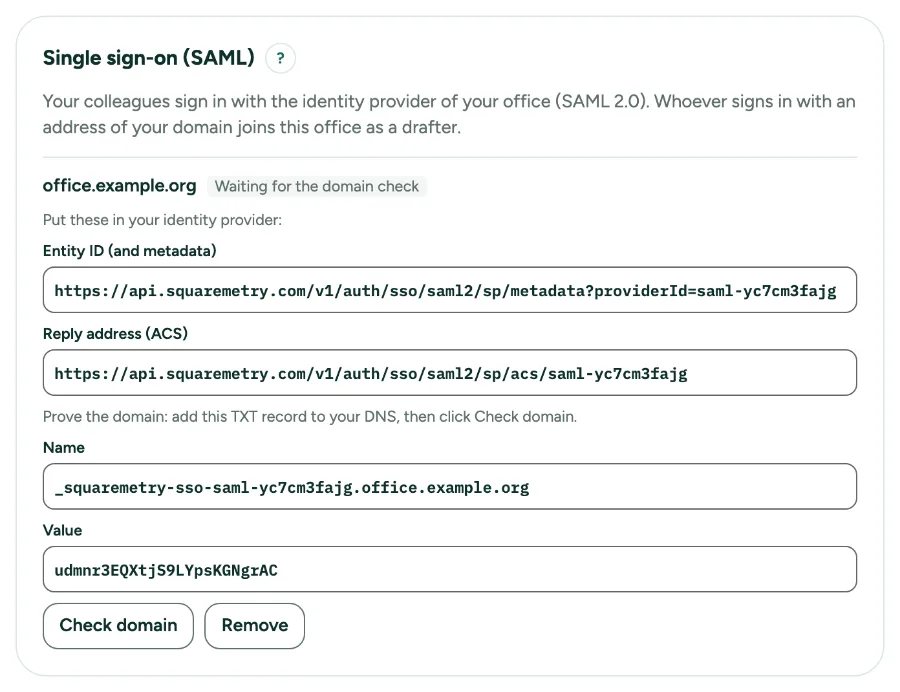
Single sign-on (SAML) for your office: step by step
1. Open Settings, Team
Single sign-on sits under the team. The owner or an admin sets it up; it needs the Team plan.
2. Fill in your identity provider
Type the e-mail domain of your office, the entity ID and the sign-in address (https) of your identity provider, and paste its signing certificate (PEM). A free mail service like Gmail cannot be used.
3. Put our details in your identity provider
After Set up single sign-on you see our entity ID (also the address of our metadata) and the reply address (ACS). Add them in your identity provider. We ask for signed assertions.
4. Prove the domain
Add the TXT record with the name and value shown to the DNS of your domain, then click Check domain. Until then nobody can sign in with single sign-on. A DNS change can take an hour. Did another office enter your domain without proving it? You can still set it up: the office that proves the domain gets it, and claims without proof by others are removed. After the proof no other office can claim it.
5. Sign in
In the sign-in window, type your work e-mail address and click Sign in with single sign-on (SSO). You go to your identity provider and come back signed in.
6. Remove
Remove switches single sign-on off for that domain. Colleagues then sign in with a code by e-mail again; their homes stay where they are.
Messages you may see
- We cannot find the TXT record yet. DNS changes can take an hour.
- Use the domain of your office, not of a free mail service.
- There is no single sign-on for this e-mail domain. Use the code by e-mail.