My homes shows every house of your workspace as a card. Search, sort, open, upload floor plans, add an address or move a house to the Trash.
You need a free account for this.
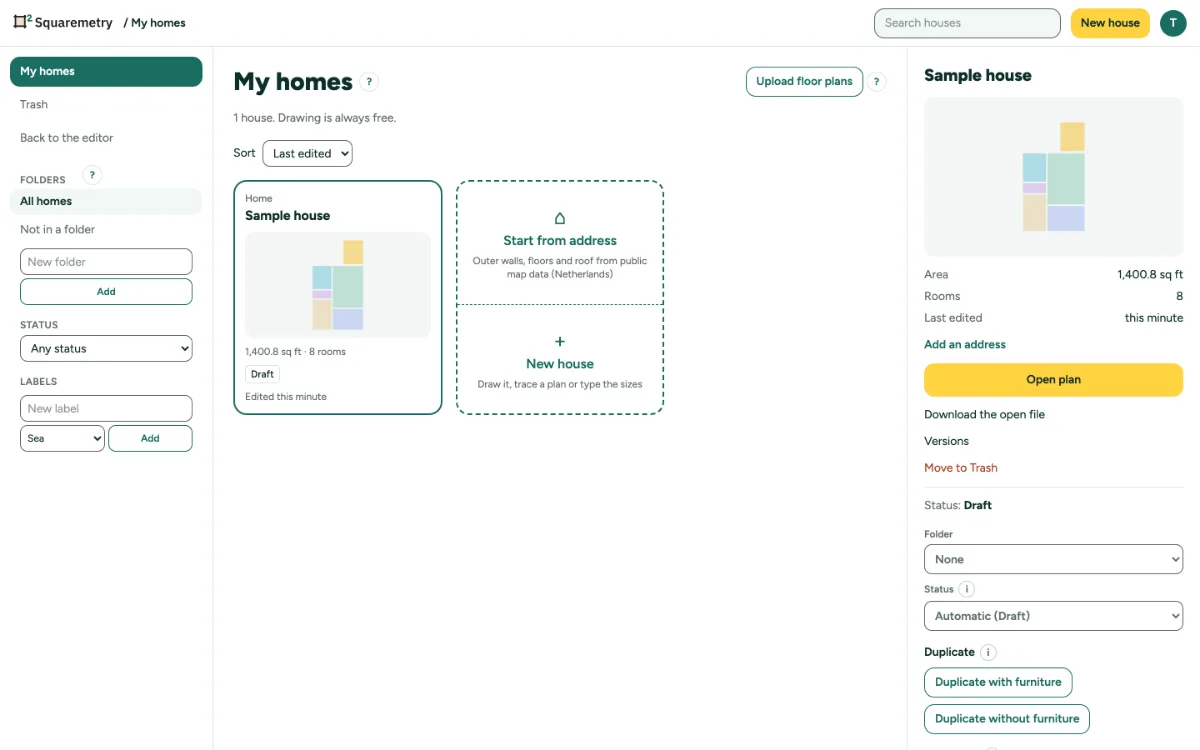
Find and open your homes: step by step
1. Open My homes
In the Account menu, click My homes. Use Search houses and Sort (Last edited, Name or Area). Search looks through every house in your workspace, also when you have thousands. The list shows 60 at a time; scroll down or click Show more for the next ones.
2. Open a house
Click a card to see its details, then Open plan. Download the open file gives a .sqm, and Versions lists earlier states.
3. Start a new one
Click New house. Without any houses you can choose Draw it, Trace a plan or Type the sizes.
4. Upload floor plans
Click Upload floor plans and choose up to 20 files at once: PDF, JPG, PNG or WebP, up to 10 MB each. Each file becomes its own house, named after the file, with the floor plan as its document. The files go one at a time, and Cancel stops after the file in progress. A file that does not work gets a line with the reason; the others go on. A file that is not a PDF, JPG, PNG or WebP (also a web page or ZIP file with an image name) is the wrong kind; damaged means an image that cannot be opened.
5. Trace an uploaded plan
Open one of these houses: the floor plan is ready as an underlay and the Scale tool is on. Click two points you know the distance of and type the real length. Then Detect walls works as usual. Walls are not detected during the upload, because the scale is not known yet.
6. Add an address
In the details, click Add an address. The search uses the country of the home, or of its measuring standard: the Netherlands, Belgium (Flanders and Brussels) and France have a public address register. Pick another country under Country. Type 3 characters, pick the address, or click Type it yourself and Save address. The register is named under the results. For a country without an address register, such as Wallonia for now, the fields to type it yourself open straight away. Our server asks the register, never your browser.
7. Trash and restore
Move to Trash keeps a house in the Trash for 30 days. Open Trash and click Restore to bring it back. Search houses also works in the Trash.
8. Open safely
If the plan in this browser is not in your account yet, you are asked first: Add it to my account first, Replace it or Cancel.
Messages you may see
- Your houses could not be loaded. Check the connection and try again.
- No address found for “Dorpsstraat 1”. Type it yourself instead.
- The address search is not available right now. Type it yourself instead.
- You chose 21 files. Upload at most 20 at once. Nothing was uploaded.
- Larger than 10 MB.
- This kind of file cannot be used. Choose a PDF, JPG, PNG or WebP.
- Damaged or unreadable: we could not open the floor plan.
- Your workspace has reached its limit of 200 documents.
- Sign in to turn floor plans into houses in your account. Drawing works without an account.
- Your floor plan is ready as an underlay. First set the scale: click two points you know the distance of. Then Detect walls works as usual.