Put a photo or PDF of a floor plan under your drawing, set the scale with a length you know, and draw over it.
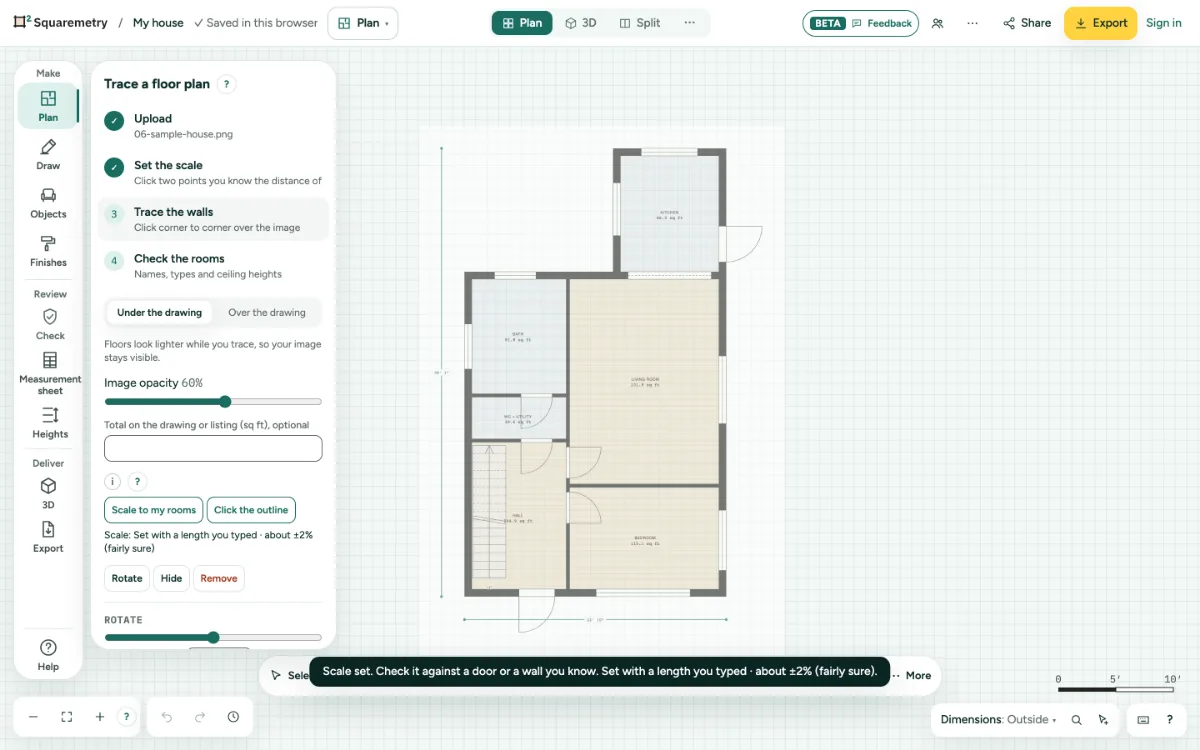
Trace a floor plan: step by step
1. Add the plan
Press T, or choose Trace under More at the end of the toolbar (or in the rail: Draw, More drawing tools), and choose a JPG, PNG or PDF. It lies under your drawing. The file stays in your browser. Tap Trace a floor plan on the start screen and the file chooser opens straight away. If you cancel it, the panel Trace a floor plan stays open with Choose image.
2. Set the scale
Click two points you know the distance of, like the sides of a door. Type the real length and click Set scale, or pick a door width.
3. Adjust the plan
In Trace a floor plan: Image opacity, Rotate, Hide and Show, and Remove. U hides or shows it. Type the total from the listing to check the scale. Here you also choose Under the drawing or Over the drawing. While you trace, floors look lighter so the image stays visible; Hide brings them back in full colour.
4. Draw over it
Press W and click along the walls. On a PDF with drawn lines, your clicks snap to those lines. Or let Detect walls find them.
5. Several pages at once
Choose more files at once, or a PDF with more pages, and Read pages as floors opens. Pick a Floor (or New floor) and a Scale per page: Set it on the page (two points), Same as page 1, or 1:100 on the page (PDF only). Read as floors adds the floors in one undo step; each floor shows its own page. They are called pages, so Sheets only means the drawing sheets of the Sheets editor. A floor that already has a picture keeps it, with its scale, when the pages go to other floors; when a page goes to that floor, the window says the page replaces it.
Shortcuts
- T
- Trace a floor plan
- U
- Hide or show the underlay
Messages you may see
- Scale set. Check it against a door or a wall you know.
- Two pages are on the same floor. Choose another floor for one of them.
- Up to 8 pages at once. The first 8 are here.
- Check the scale: the plan would be implausibly large or small.
- This file is larger than 40 MB. Use a smaller image or PDF.
- This browser cannot open HEIC photos. Save it as JPG and try again.