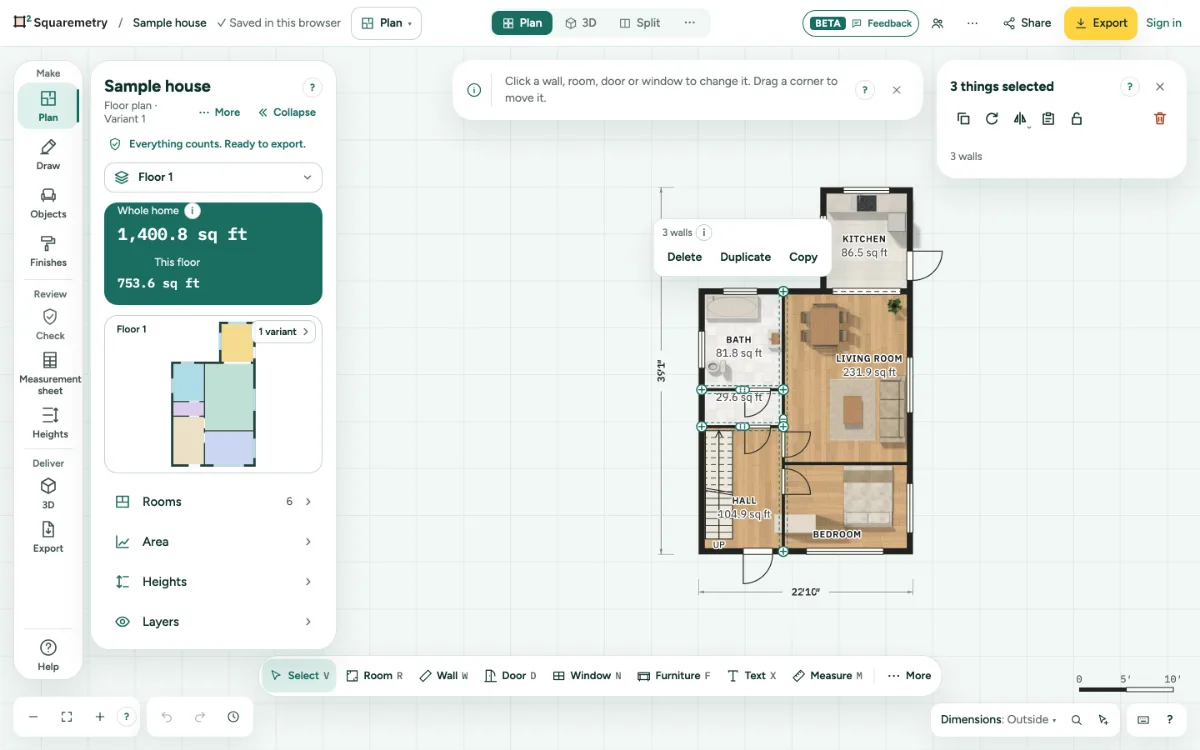
Choose many things at once with a box: walls, doors, windows, furniture, rooms, text and more. Delete, move, duplicate or copy them, also to another level.
Select several things, copy and paste: step by step
1. Box select
Press A or choose Box select under More in the toolbar, then drag over the plan. With Select, hold Shift and drag on an empty spot or in a room. Shift and click adds or removes one thing. ⌘A selects everything on this level. Only what you see is selected: in Systems cables and pipes too, but never a trade that is off under Layers, installations outside Systems, or in Model a hidden group or a group on a hidden layer.
2. Drag right or left
Drag to the right for only what lies fully inside the box: the frame is solid. Drag to the left for everything the box touches: the frame is dashed and amber. Walls, doors, windows, furniture, whole rooms, text, lines, dimensions, symbols, stairs, outdoor areas and shapes from Model all count, on the level you are on.
3. Add or take away
Hold Shift while you drag to add to what you chose. Hold Alt (Option on a Mac) to take away. With Box select, dragging on an empty spot no longer moves the view: use Space and drag, the middle mouse button or two fingers. Press V or Esc to go back to Select. With Box select, a drag that starts on something you did not choose always draws a box, also right next to a wall; press on what you chose to drag it. A click still picks what is under the pointer.
4. Delete, move, copy
The card on the right (on a phone, the sheet at the bottom) is the one place for what you chose: its title says how many, such as 12 things selected, the line below says what, such as 4 walls, 2 doors, 6 pieces of furniture, and its row of buttons has Duplicate, Copy, Paste and Delete; for furniture, Group sits below. There is no menu over the plan, so your selection stays in view. ⌫ removes it all in one step; Undo in the message puts it back. While a menu or list is open, ⌫ and letters belong to it: nothing behind it is deleted and no tool changes. Doors and windows in deleted walls go too. Drag one of the chosen things, or use the arrow keys, to move them all.
5. Fix sizes at once
Under Selection, click Fixed sizes for all chosen walls and rooms in one step; click it again to release them. If only some of them are fixed, it says Some. On a phone, press and hold an empty spot and tap Box select, or press and hold a wall or room, tap Select more, then tap the others; tap an empty spot to stop.
6. Duplicate, turn, mirror
Under Selection, click Duplicate (⌘D), Turn 90°, Mirror sideways or Mirror up-down. Doors, windows and text on them come along. A selection joined to walls you did not pick does not turn or mirror: that would break the room open. Turn and Mirror in the panel are then grey, and the tip says why. To turn the whole home, use Turn plan 90° at the level. A mirrored door still opens into the same room, with its hinge on the mirrored side. A room takes only its own walls: where a facade runs on along the next room, only the piece of this room comes along, with the doors and windows in it. Furniture, symbols, outdoor areas and shapes from Model turn and mirror along with the rest, as one whole. A duplicate lands beside the original, past any room in the way.
7. Copy to another level
Click Copy (⌘C), switch level and click Paste (⌘V). The walls land in the same place and join the walls that are there; furniture and other things come along. Paste again and the next copy lands next to it, never on top of it. On the level you copied from, the copy goes next to the original, one step further each time. A symbol does not go where one of the same kind already sits at the same height; one sentence says so.
Shortcuts
- A
- Box select: drag to choose many things
- ⌘A
- Select all
- ⌫
- Delete what is chosen
- ⌘D
- Duplicate what is chosen
- ⌘C
- Copy walls
- ⌘V
- Paste walls on this level
On Windows and Linux, use Ctrl where the Mac has ⌘.
Messages you may see
- Tap more walls or rooms. Tap an empty spot to stop.
- Copy walls first: pick them and press Copy.
- Turned in place. Undo puts it back.
- This is joined to other walls. Turning or mirroring it here would break the room open. To turn everything, use Turn plan 90° at the level.