Open Systems, a section of Plan, to draw electrical, water, heating and air on the same plan. Each trade is a layer you can turn off on the screen and in each export.
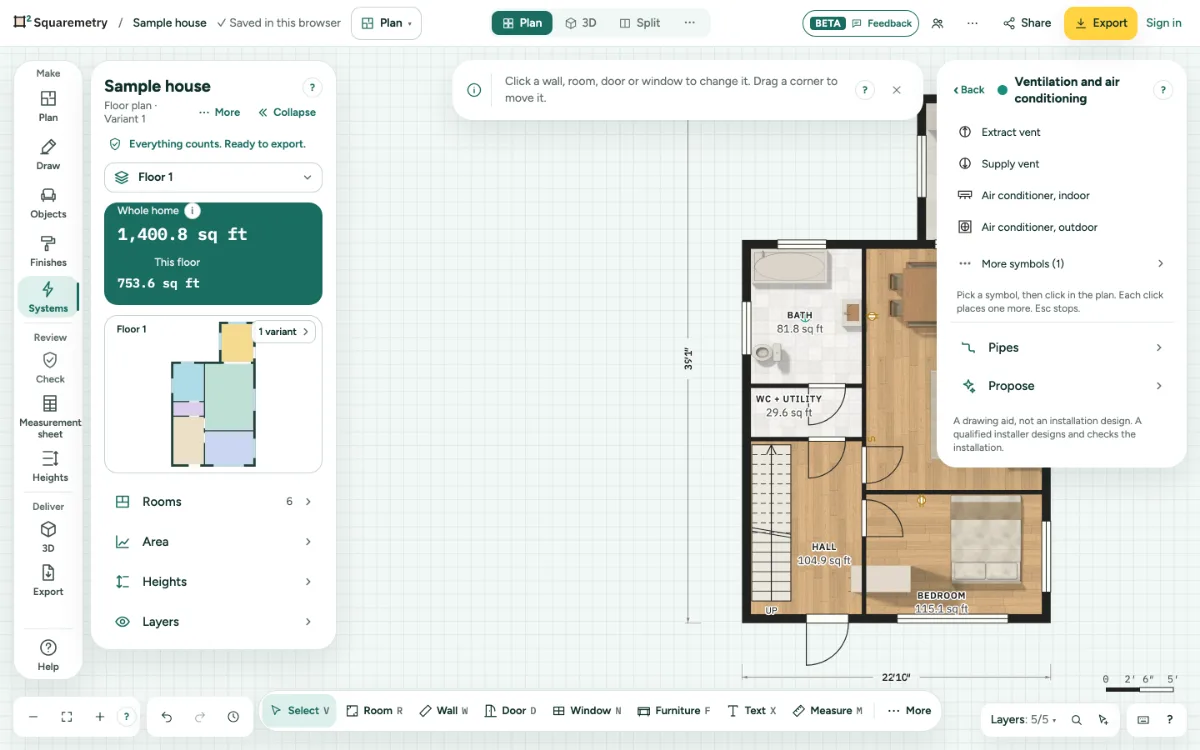
Systems: electrical, water, heating and air: step by step
1. Open it
Under More in the Plan panel, choose Systems in the rail, or search Systems with ⌘K; from then on Systems is in the rail under Make. The Systems panel opens on the right: one row per trade (Electrical, Water and drains, Heating, Ventilation and air conditioning, Camera and doorbell) with the colour of its layer and how many there are on this level, and Layers as one row at the bottom. A row opens that trade in the same panel, with Back to return; Esc also goes back. Systems works on a tablet or computer.
2. Place a symbol
Open a trade and pick a socket, switch, light, tap, radiator, vent or air conditioner from its list, or more under More symbols, and click in the plan. Each click places one more; Esc stops. A symbol with a mounting height, like a socket or a switch, lands against the nearest wall, facing the room. Hold Alt to place it freely. A spot that already has a symbol of the same kind at the same height gets no second one, and one sentence says so. Two sockets side by side are a Double socket; for one above the other, give the first its own height first.
3. Change a symbol
Press Esc, then click the symbol. Its card shows the kind, the mounting height, the size to the nearest walls and its circuit. Each change is one undo step. A kind from another trade removes what only fit the old one: the circuit, its own height and the switch links, and one sentence says so. A light that is no longer a light leaves the list of its switch. Moving it, pasting it, its own height or another kind never puts two of the same kind in one spot at one height: a typed 0.3 m is the usual 0.3 m, and one sentence says so. Two that already lay in one spot in an older plan still move and turn with the rest. Drag a symbol, or move it with the arrow keys: the end of each cable or pipe that belongs to it (within 30 cm) comes along, so the length stays right.
4. Layers
Open the row Layers and turn Electrical, Water and drains, Heating, Ventilation and air conditioning, or Camera and doorbell off to hide them on the screen. Your work stays. Heights and distances to walls adds the mounting height next to each symbol and the size to the nearest walls. A trade that is off is also left out when you select: Select all (⌘A), Box select and a click take only what you see, cables and pipes included.
5. Dutch or US symbols
Symbols follow the units of the plan: in metres they are drawn the Dutch way (NEN), in feet the US way (NEC), like an S for a switch.
6. In the export
In Export, Systems lists the trades that have something. Untick one to leave it off that drawing, or tick Heights and distances to walls. With PDF, A sheet per trade adds one page per level for each trade that is ticked, with a legend that counts the symbols and the length of each pipe; the electrical sheet also lists the circuits. A DXF puts each trade on its own layer (SYS-ELECTRICAL, SYS-WATER, SYS-HEATING, SYS-AIR, SYS-SECURITY). With Drawing set on (also after Panel schedule as PDF) these ticks are not there: each sheet of the set already shows its own trade.
7. Camera and doorbell
Camera and doorbell is a trade of its own, with its own colour and layer: a camera on a wall at 2.4 m (US 8 ft) and a doorbell at 1.4 m (US 48″). Under Electrical, More symbols also has an outdoor socket.
8. Outside Systems
Symbols, pipes and cables stay visible in the other editors, but pipes and cables can only be chosen and changed in Systems. A cable follows the ceiling height you set in Plan. On the plan, sockets, lights, pipes and cables only show in Systems, so Select all (⌘A) and Delete elsewhere in Plan leave them alone.
Shortcuts
- ⌘K
- Search tools, actions and help
- Esc
- Stop, then Select, then let go
On Windows and Linux, use Ctrl where the Mac has ⌘.
Messages you may see
- Socket placed. Click again for another one, or press Esc.
- Socket is already here. Choose another spot, or the kind “Double socket”.
- Socket is already at this spot and height. Choose another spot or height, or the kind “Double socket”.
- This level has 300 symbols, the most it can hold.