Photos, field notes and photo points that a plan already has stay: on the plan, in a view link and in the photo appendix of the report. New ones can no longer be added.
Photos, field notes, photo points and 360° photos: step by step
1. Photos and notes already in a plan
A plan that already has photos or a field note with a room keeps them. They are not on the drawing; they go in the photo appendix of the report. Plan › More › Photos and notes shows them per floor and room: View, Blur or Remove a photo, Remove a note, or Open a photo point. Removing takes it out of the plan, the view link and the report; Undo brings it back. New photos and notes can no longer be added.
2. Photo points already on the plan
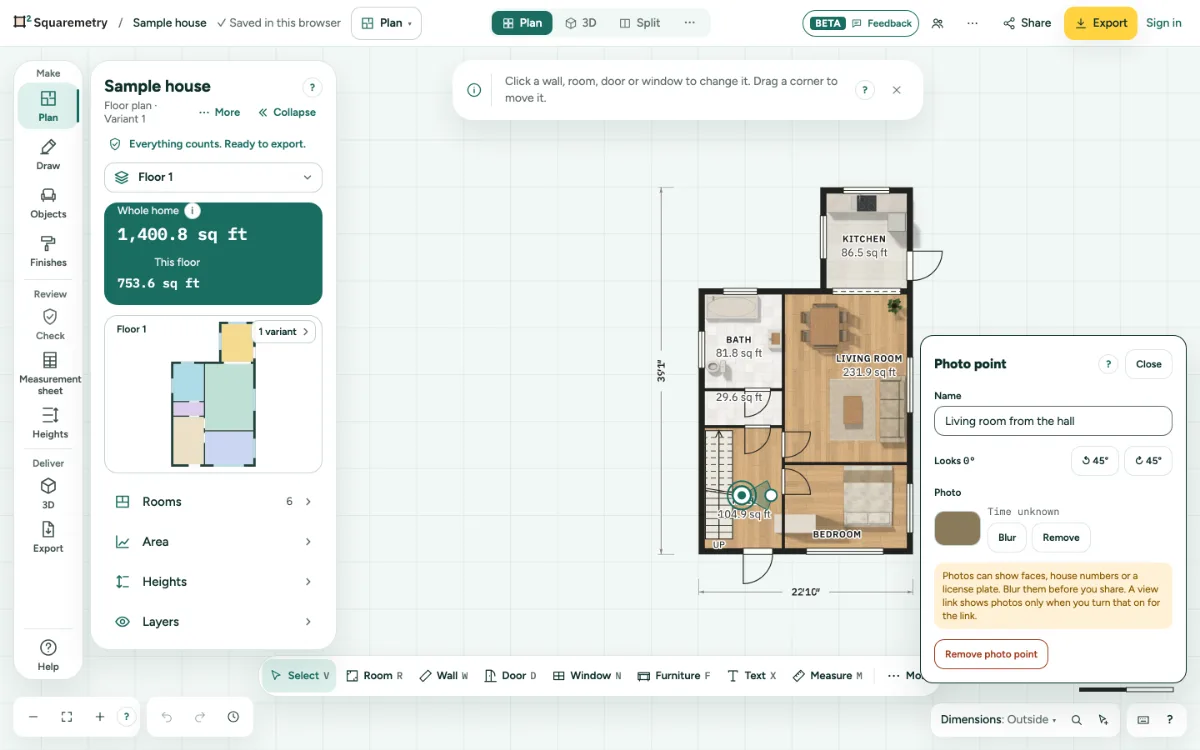
A photo point is a camera on the plan that shows where someone stood and looked. Points that a plan already has stay. Click one to open its card. Drag the camera to move it. Drag the round handle at the end of the cone, or use Turn left 45 degrees and Turn right 45 degrees, to change where it looks.
3. View or remove a photo point
The Photo point card shows the photo and the 360° photo the point already has; click View 360° to look around. Click Remove photo point, or select the camera and press Delete. Undo brings it back. New photo points and new photos can no longer be added.
4. Blur faces and house numbers
Click Blur next to a photo. Paint over faces, house numbers or a license plate, or click Blur the whole photo, then Save blurred copy. The blurred copy replaces the photo on the plan.
5. Share them, if you want
A view link shows photos only when you check Show photos and photo points for that link. People then see the cameras on the plan, a Photo tour, and the 360° photos with the room and its area.
6. Add them to the report
On the Measurement sheet (Review in the rail), check Add a photo appendix before you make the report. Photos and field notes come after the drawings.
Messages you may see
- Photo point removed. Undo brings it back.
- This workspace already has 300 photos. The photo stays in this browser; remove one you no longer use in Settings.