Share a home in your account with a link that only lets people look. Put it on your own site, or add a QR code to the PDF.
You need a free account for this.
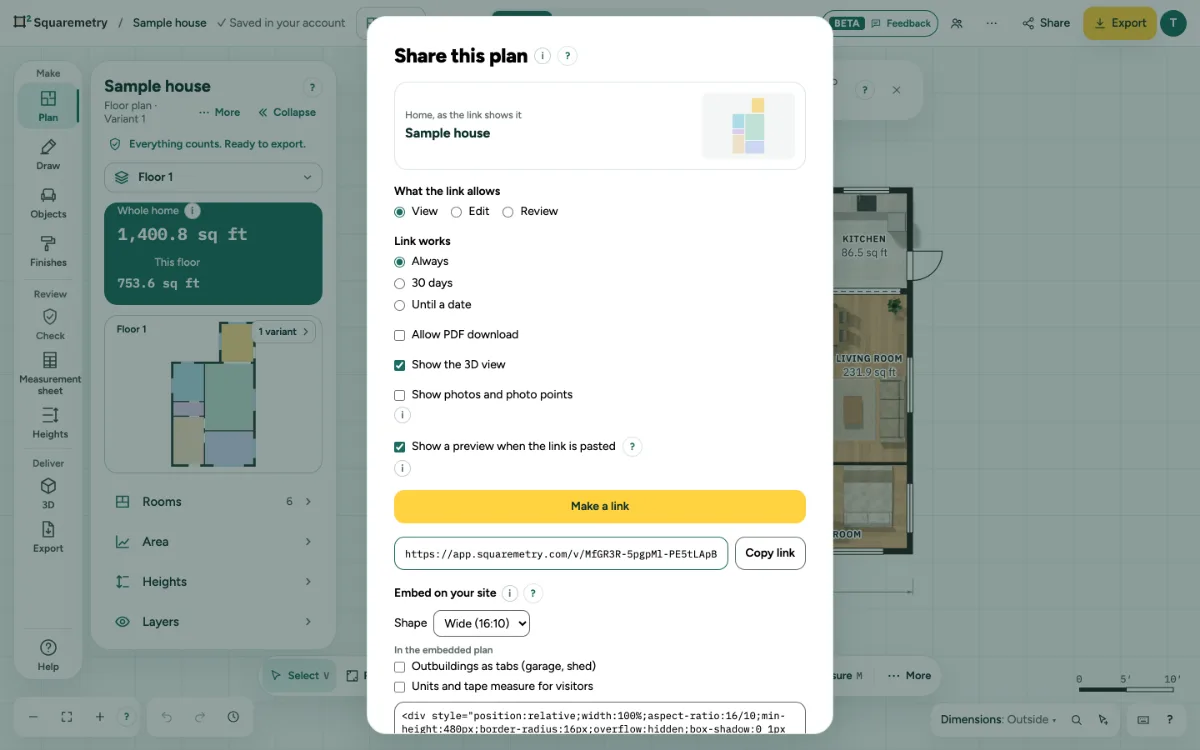
Share a plan with a view link: step by step
1. Add the home to your account
Sharing works for homes in your account. Otherwise you see Add this house to your account first, with Sign in (after signing in the home goes into your account and Share opens again) or, when you are signed in, Add to my account.
2. Make a link
Click Share. Under What the link allows, keep View. Under Link works, pick Always, 30 days or Until a date. Check Show the 3D view if people may see it in 3D. Check Show photos and photo points only if people may see your photos (off by default). Click Make a link, then Copy link.
3. Ready? Share it in one window
When the plan looks finished (named rooms on at least one floor), the first export opens Your floor plan is ready: the view link with Copy link, a preview of how the plan looks on a website, the code for your website with Copy code, a QR code to scan with a phone, and WhatsApp or Email. If this home has no view link yet, the window first asks Do you want to share it?: choose how long the link works (Always or 30 days) and click Make a link; it never makes a link by itself. Your own preview does not count as a visit. It comes once per plan. Find it again under Share (Your floor plan is ready), with ⌘K (Ready? Share your floor plan) or with the button at the top. Without an account it says that sharing needs a free account; Sign in or create an account takes you there in one step.
4. What people see
The link opens a page marked Shared plan · view only, with the total, the rooms and the floors. People can tap a room to see its size and switch units. Nobody can change it, and search engines never show it.
5. Turn a link off
Under Links that work now, click Turn off. The link stops working at once, also where it is embedded.
6. Embed it on your site
Under Embed on your site, click Copy code and paste it into your page. The plan shows compact, with Open full screen. The code holds a small link to Squaremetry under the plan; with Pro, Team or an unlocked home you can turn it off.
7. Add a QR code to the PDF
In Export, turn on QR code to the live plan. The report then says Scan for the live plan.
Messages you may see
- Add this house to your account first. Then you can share it.
- Pick a date between tomorrow and a year from now.
- Link turned off. It does not work any more.
- This link does not work any more