Paste your view link in a chat app, Slack, Teams or a document, and it unfolds into a card with the name, the area and a picture of the floor plan.
You need a free account for this.
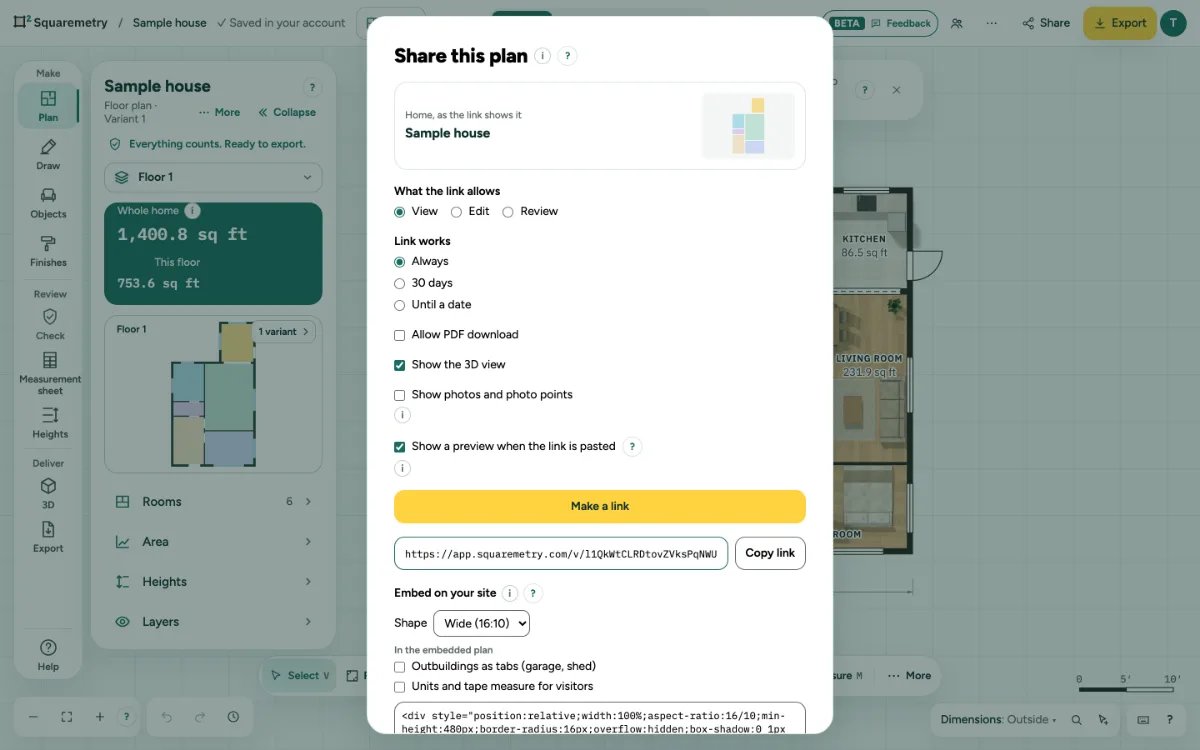
A preview when you paste a view link: step by step
1. Make the link
Click Share and keep Show a preview when the link is pasted checked. Click Make a link. The picture is made in your browser from this plan and saved with the link.
2. Paste it
Paste the link anywhere. The card shows the name of the home, the main area under your standard, the number of floors and the floor plan. A click opens the view link.
3. On a site or in a document
Sites and editors that can embed (oEmbed) show the plan itself, the same as the code under Embed on your site.
4. Leave it out
Uncheck the box before you make the link. A pasted link then shows a plain card without the name of the home and nothing to embed.
Messages you may see
- The link works, but the preview could not be saved. A pasted link shows a plain card.