A view link opens a page with the plan, the rooms and the total. No account is needed and nothing is stored in the browser.
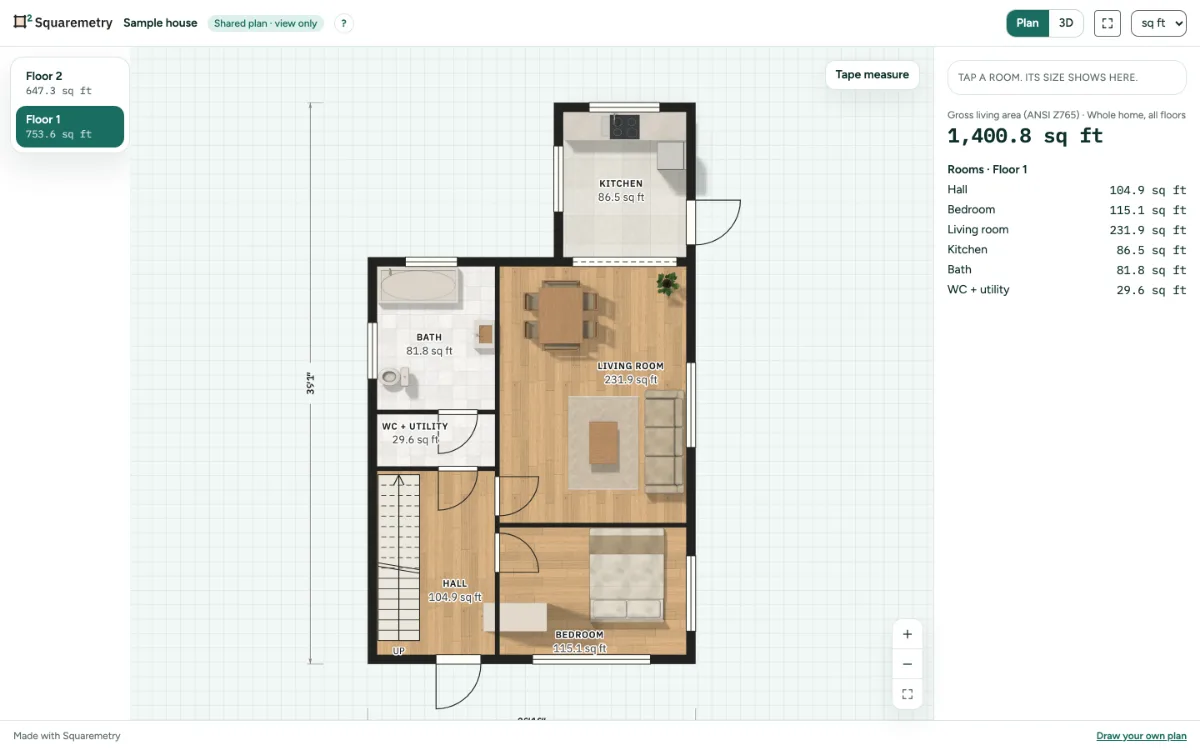
The shared plan page, AR and questions: step by step
1. Look around
Switch floors with the list on the left of the plan, top floor at the top (on a phone, tap the button with the floor name); the plan opens on the ground floor. Point at or tap a room to see its name and its area by the standard, with the name of the standard. Pinch, drag or use + and − to zoom, and the corners button to see the whole plan again; on another website the mouse wheel zooms only with Ctrl. Full screen is at the top. Switch between sq ft and m². Choose 3D when the owner allowed it: it shows the outside dimensions, and Options turns on part dimensions, levels and room dimensions. When the owner shows photos, click a camera on the plan or Photo tour to see each photo with its room and area.
2. See it in your room
On an iPhone, iPad or Android phone, View in your room starts AR. On a computer you get a QR code to scan with your phone. This needs an unlocked home and a link that shows the 3D view.
3. Ask the office
When the home belongs to an office with a Team plan, Ask (the name of the office) a question opens a short form. Choose a question or Request a measurement, fill in your name and email, give consent and click Send.
Messages you may see
- This link does not work any more
- The owner of this link has not shared the 3D view.
- AR could not start here. Try again, or open the link on a phone with AR.