With Enterprise, a chain or franchise has one organisation with a workspace per branch. A central admin sees the use per branch, chooses one house style for every branch, and accepts the data processing agreement. People in one branch never see the homes of another.
This is for teams. An owner or admin sets it up.
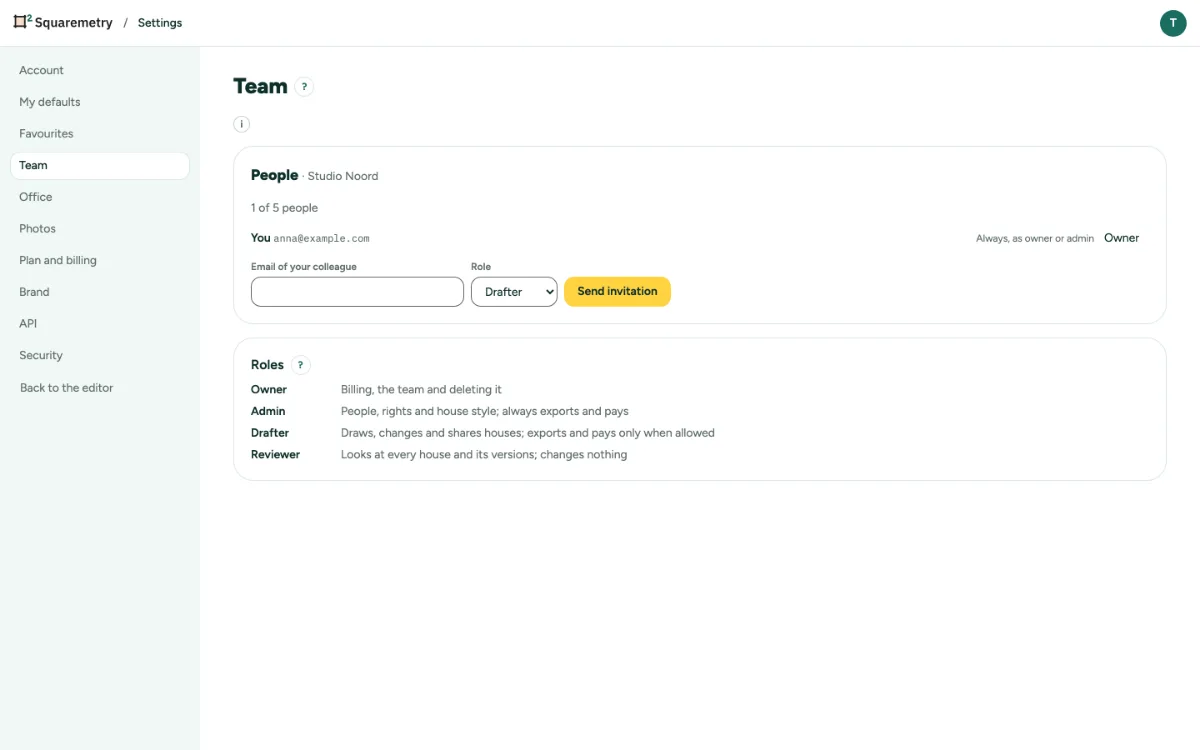
Enterprise: one organisation with branches: step by step
1. We switch it on
Enterprise has no self-service. After a demo we set up your organisation, add your branches (team workspaces) and make you a central admin.
2. Open Settings, Office
Under the office card you see Organisation with your organisation, the branches and the use per branch this month: people, homes of the plan, homes through the API, exports and view links. Pick another month to look back.
3. Work in a branch
As a central admin you are an admin in every branch. Switch the workspace in the account menu to work in a branch, invite people or set up single sign-on there.
4. One house style
Choose One style for every branch (from the head office) and pick the Head office. Its colours, texts and logo go to every branch, and a branch can no longer change its own style. Choose Each branch its own style to give that back.
5. Accept the agreement
Read the data processing agreement, tick I accept on behalf of the organisation and save. The date and version stay with the organisation.
6. Invoices and log
One invoice a month for the whole organisation shows under Invoices with its status. Log shows who added a branch, made, rotated or revoked an API key, or changed the style.
Messages you may see
- That did not work. Please try again.