Open an FML file from another program and go straight to a measurement report under the Dutch measuring instruction, in one route.
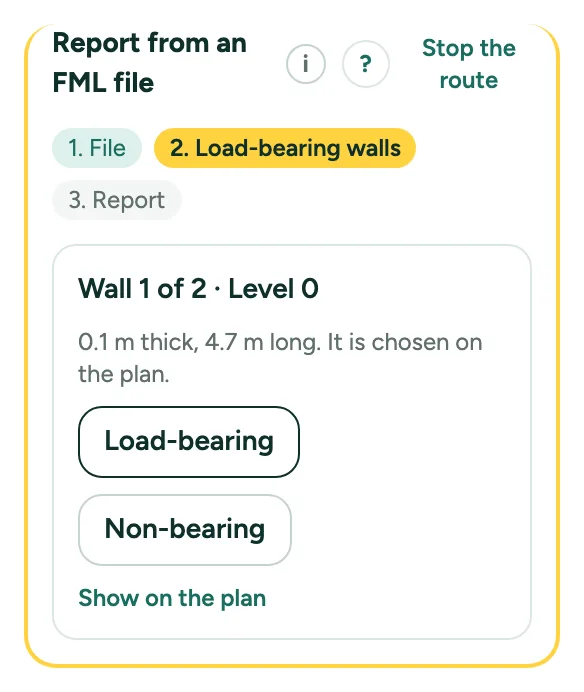
Measurement report from an FML file: step by step
1. Start the route
Click … at the top right, open File and choose Measurement report from an FML file. Pick the .fml file. The check window shows what it found; click Start and check the walls.
2. Confirm the walls
The route panel shows one interior wall at a time, chosen on the plan. Click Load-bearing or Non-bearing. Undo the last choice brings it back.
3. Pick a roof
An FML file has no roof. Choose Flat roof or Pitched roof per level; you can change it later with the Roof row at the top of the floor list.
4. Make the report
Click Make the measurement report. As long as something is missing, the panel lists what the report waits for.
Messages you may see
- Next: confirm the load-bearing walls, then make the measurement report.
- Route stopped. Your plan and your choices stay.