The editor marks what may be off in the drawing, like a room that is not closed or a stair without headroom, and offers a fix in one click.
Problems and checks before you export: step by step
1. See them
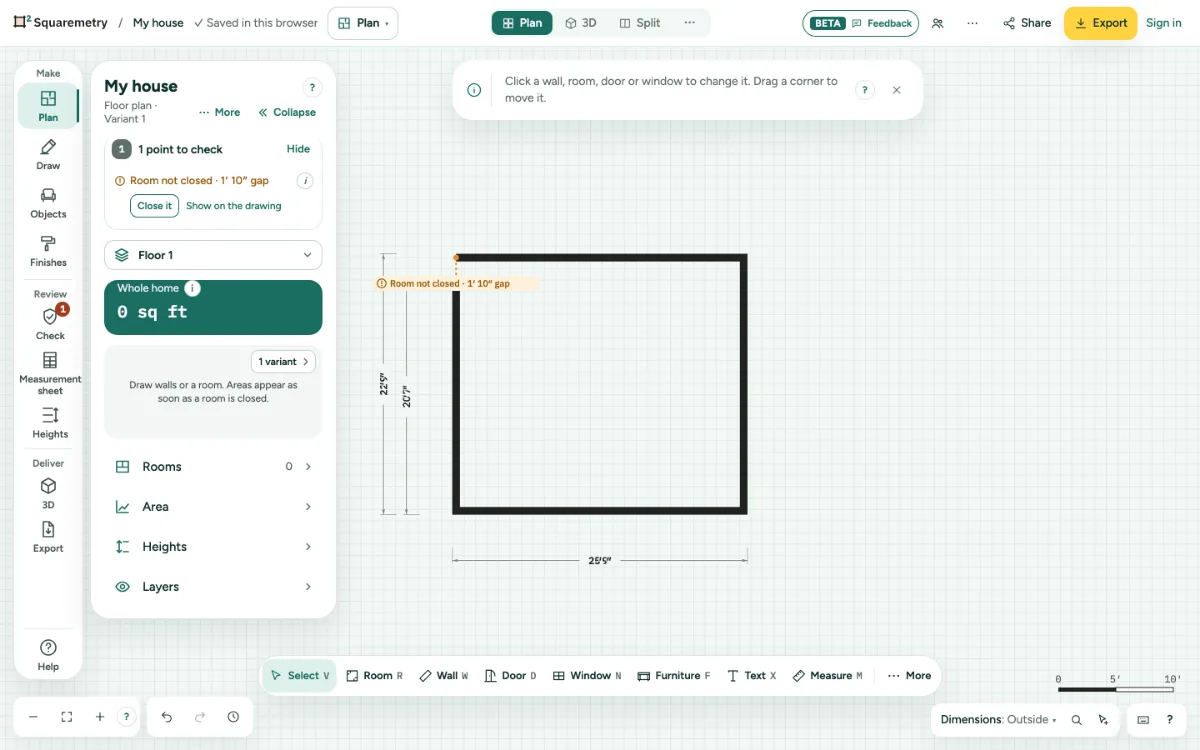
A red or orange chip shows on the spot. At the top of the Plan panel one line says how many, like 3 points to check, with Show; Check in the rail (under Review, with the same number in red) opens the same list. The list has them in full, errors first, then warnings, then tips. The same kind is one group, like 3 rooms without a name, with each room and its own fix below. The (i) next to a group or a line explains it once. A room without a name is a soft tip in grey, not a warning. Show on the drawing takes you there. With nothing to check, a tick says Everything counts. Ready to export.
2. Fix one
Click the fix, like Close it, Name it or Cut the opening above. Name it opens the room with its name ready to type. Each fix is one undo step.
3. A facade with a gap
A facade with a gap of up to 10 ft (3 m) in a run of exterior walls also shows Room not closed, with Close the facade: it adds the missing piece of wall, in the same kind and thickness. A wider open side, like a carport or a porch, gets no warning.
4. Where something overlaps
When rooms, walls or an opening in the floor take more than the floor inside the facade, the list says where, with the area: Stairwell lies 0.25 m² over a wall, or Void reaches 3.7 m² outside the facade. The spot is hatched red on the drawing, only on screen and never in an export. Show zooms in and selects what is involved; Trim to the facade cuts an opening back to the inside of the facade. A slanted or curved wall alone never gives this message.
5. Loose wall ends
A wall end that joins nothing has an open circle, so you see where a wall does not connect. A half wall or railing stands free on purpose and has none. A gap under 2″ (5 cm) closes by itself when you draw or drag; a larger gap shows Room not closed with Close it.
6. Before export
Export shows Check before you export for all floors. Warnings do not stop the export.
Parts on the screen
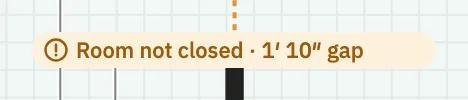
Problem chip. Orange for a warning, red for an error, on the spot in the drawing.
Messages you may see
- Room not closed · 3″ gap
- Nothing below this room
- Void reaches 3.7 m² outside the facade
- No problems found. Check every measurement yourself.
- Fixed.
- Joined a gap of 1″. Undo opens it again.