Make a video that flies past your saved 3D views, or a sharp still up to 4K. Both are made in your browser; nothing is uploaded.
Free as a small PNG with a watermark. In full: unlock the home (your first home is free) or take Pro.
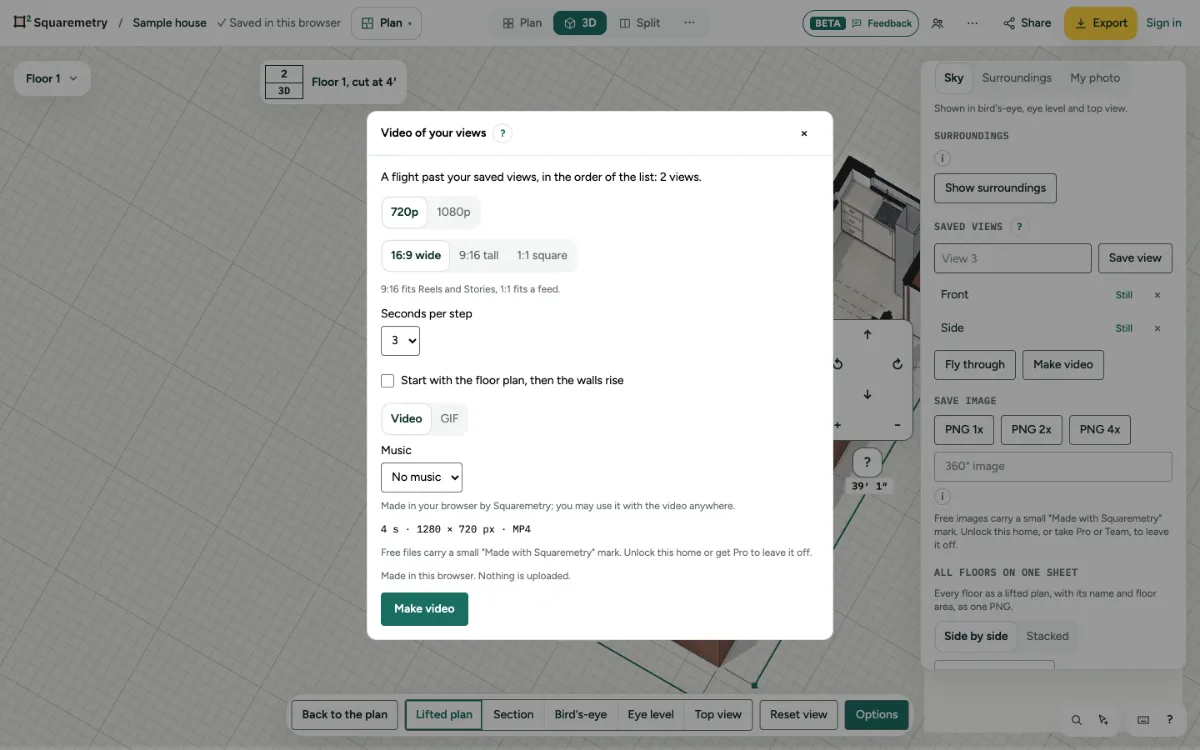
Make a video or a still: step by step
1. Save views first
In 3D, save two or more views under Saved views.
2. Video
Click Make video. Pick 720p or 1080p, the shape (16:9, 9:16 or 1:1) and the seconds per step. You get an MP4, or WebM when your browser cannot make MP4.
3. Plan, music or GIF
Tick Start with the floor plan: first your floor plan, then the walls rise and the video flies past your views. Pick Music (Calm or Bright, made in your browser) for an MP4. Pick GIF for a quick preview without sound.
4. Still
Click Still next to a view. Pick 1080p, 2K or 4K and the number of samples. More samples take longer and look cleaner.
5. Wait or cancel
A bar shows the progress. Cancel stops it. The job pauses while the tab is in the background.
Messages you may see
- Save two or more views to make a video of them.
- A section uses the normal render: the light tracer cannot cut the house open.
- Your role in this team does not include exporting. Ask an admin of your team.
- Your new homes for this month are used up, so this file carries the free watermark.