See a piece of furniture from your plan at its real size in your own room with your phone, or walk through the whole house with a VR headset.
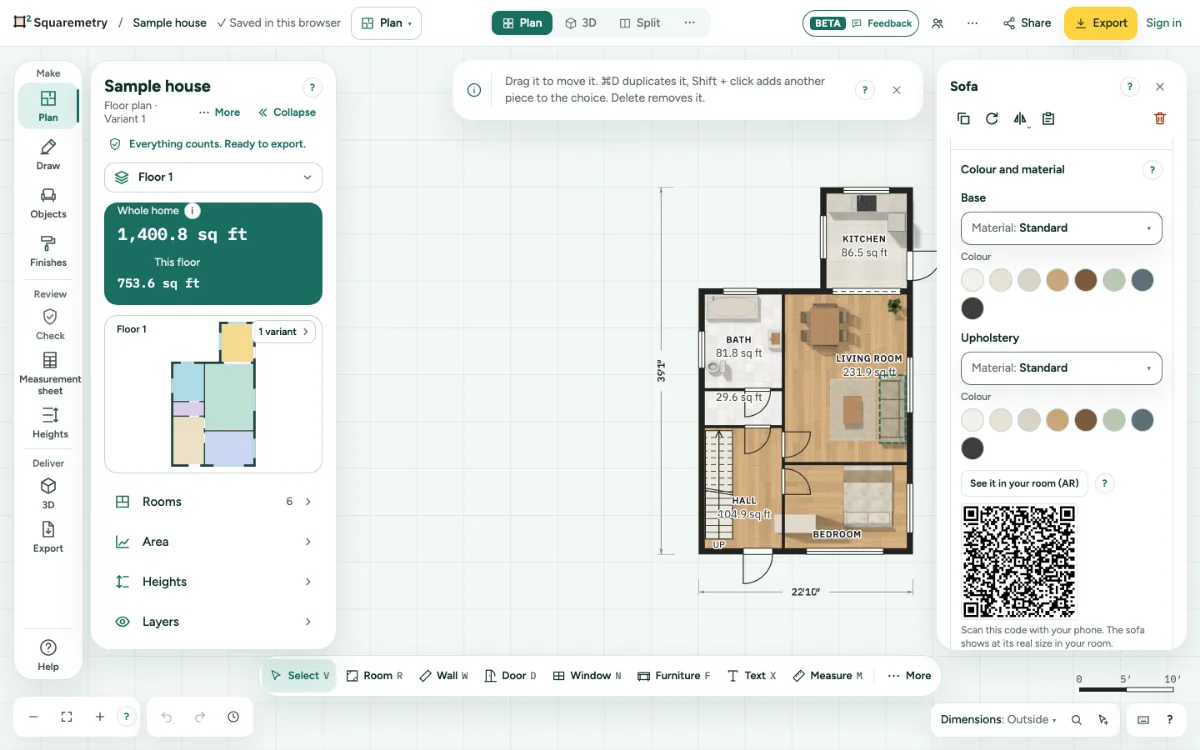
One piece in your room (AR) and walking in VR: step by step
1. Pick a piece
Click a piece of furniture in the plan. In its card, click See it in your room (AR); on a sofa or table it is under Colour and material.
2. On a computer
A QR code appears. Scan it with your phone. The page on your phone shows the piece and its size; tap Place it in your room. The link holds only the kind and size of the piece, not your plan.
3. On a phone or tablet
On an iPhone or iPad the piece opens in AR right away. On an Android phone with AR, point at the floor and tap to place it; tap again to move it. Done takes you back.
4. Walk in VR
In a browser that knows your VR headset, 3D shows a VR button next to the cameras. Click it and put on the headset: you stand where the camera was, at eye level. Walk with the thumbstick. Exit VR, or take off the headset, brings you back.
Messages you may see
- This device cannot show AR. Use an iPhone or iPad, or Chrome on an Android phone with AR.
- AR works for furniture from the library. Your own pieces stay in the plan.
- This AR link does not work. Scan the code again.
- VR could not start. Put on your headset, allow VR in the browser and try again.