The first time you open an empty plan, the start screen asks how you want to start. The tour shows the basics in four steps.
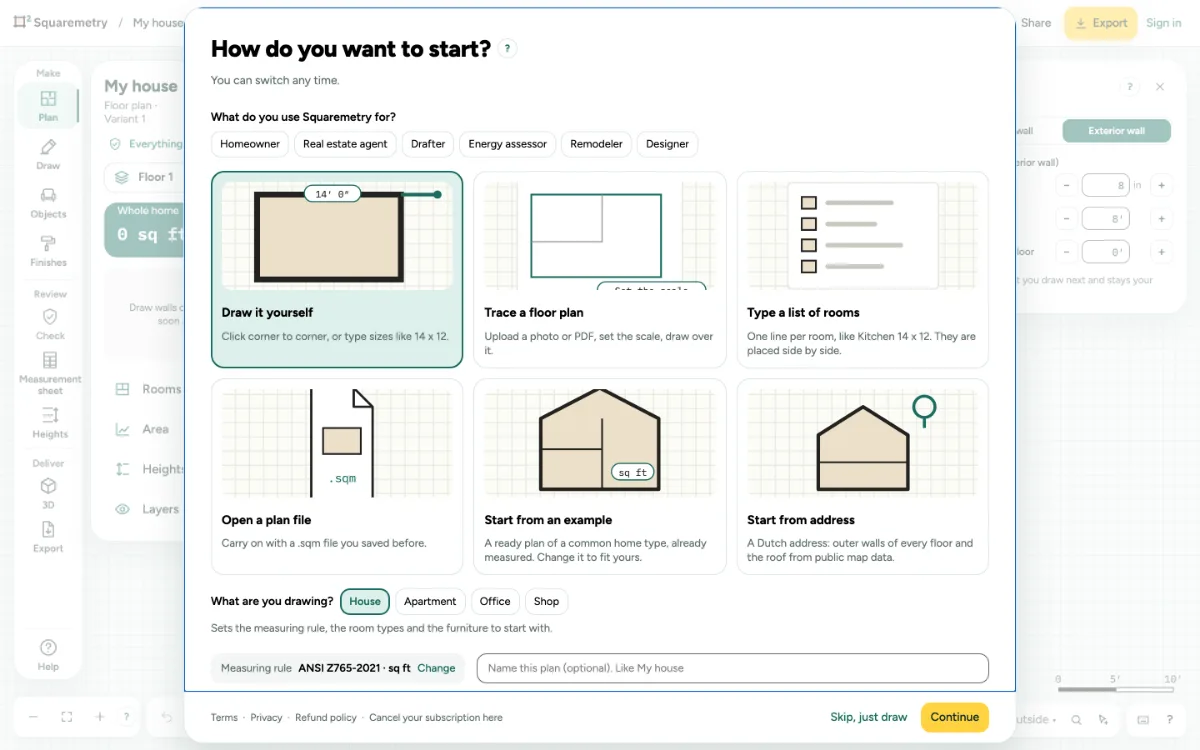
The start screen and the tour: step by step
1. Choose what you use it for
At the top, pick Homeowner, Real estate agent, Drafter, Energy assessor, Remodeler or Designer. That sets your work profile: the ways to start below; a Remodeler starts with Room template. Without a choice nothing changes.
2. Choose how to start
Without a work profile you see Draw it yourself, Trace a floor plan, Type a list of rooms, Open a plan file, Start from an example and Start from address. A work profile shows the six ways that fit it, such as Open an FML file, Open a DXF, Describe it (AI), Sketch or photo (AI) or Room template, and always Start from address. Start from an example is always under File. You can switch any time.
3. Set the basics
Pick what you draw (House, Apartment, Office or Shop), check the Measuring rule and give the plan a name if you like. Click Continue, or Skip, just draw.
4. Take the tour
Open Help, the ? at the bottom right, and choose Take the tour: draw a room, choose it, see what counts and export. Next and Skip move on; the first two steps move on by themselves.
5. One message at a time
The editor says one thing at a time. A problem or a message comes first, then the hint at the top for the tool you use, then a tip. The label at the mouse only shows when the hint is closed. The tip for ⌘K comes after your first room, when the hint is closed. On a phone the line above the toolbar takes the place of the hint.
6. Easy to read and to click
Every button has a click area of at least 44 px, text is at least 12 px, the edges of fields are dark enough to see, and the choices you tick are teal. The toolbar buttons are 40 px high, so the screen does not get fuller.
7. Help with every button
Point at a tool or button and a short label says what it is and what you do with it, in one sentence. The ? next to a tool, tab or panel opens its guide in a new tab. In Model, Sheets and Systems that ? follows the tool or tab you chose; Help also has the guide for the tool you use.
Messages you may see
- Offices and shops are measured with the rule for homes: Squaremetry has no rule of their own for them yet.