One search box finds every tool, action, view, editor, help window and guide, with its shortcut.

Search tools, actions and help: step by step
1. Open the search
Press ⌘K, or click the magnifier at the bottom right. On a phone it is in More.
2. Type and pick
Type a word, like wall or export. Use the arrow keys and Enter, or click. Esc closes it.
3. Workspaces
Search a place by name, like Sheets or Present, or a part of Plan, like Check, Measurement sheet, Interior or Systems. Old names still find their place: Survey opens Review, Remodel the remodel mode, Interior and Systems, Site and Plot open Outside in Plan.
4. Guides
Guides from this help center show up too. Picking one opens it in a new tab.
5. Tools under More
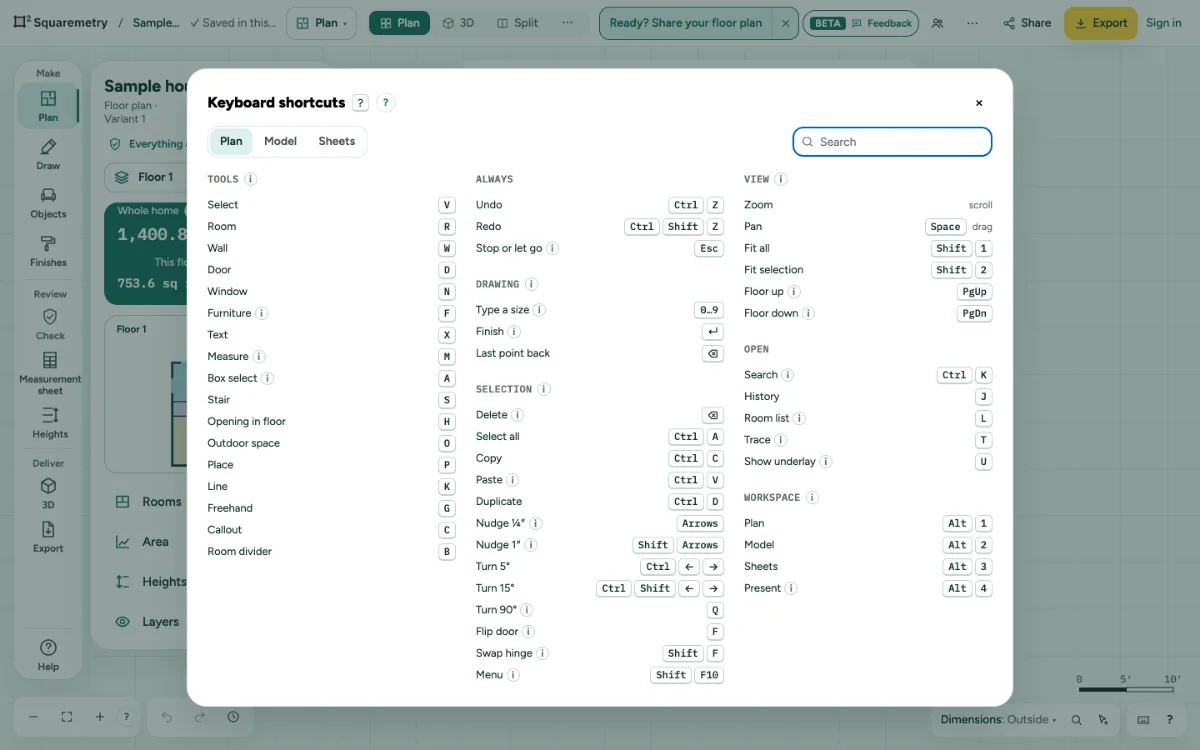
The toolbar shows the tools you use most. More, at its end, holds the rest, each with its key: Box select at the top, then Building parts (Stair, Opening in floor, Outdoor space, Place), Draw (Line, Freehand, Callout, Room divider), in Plan also Outside (the plot, driveway and garden, ground and north), and Room list, Trace and Start from address. The key works without opening More. The tool you pick shows in the toolbar while you use it.
Parts on the screen

Help corner. Dimensions, search, keyboard shortcuts and the Help menu with the guides.
Shortcuts
- ⌘K
- Search tools, actions and help
- ?
- Keyboard shortcuts
On Windows and Linux, use Ctrl where the Mac has ⌘.
Messages you may see
- Nothing found for “stair”. Try another word.