You do not need an account to keep your work. The editor saves your plan in this browser after every change.
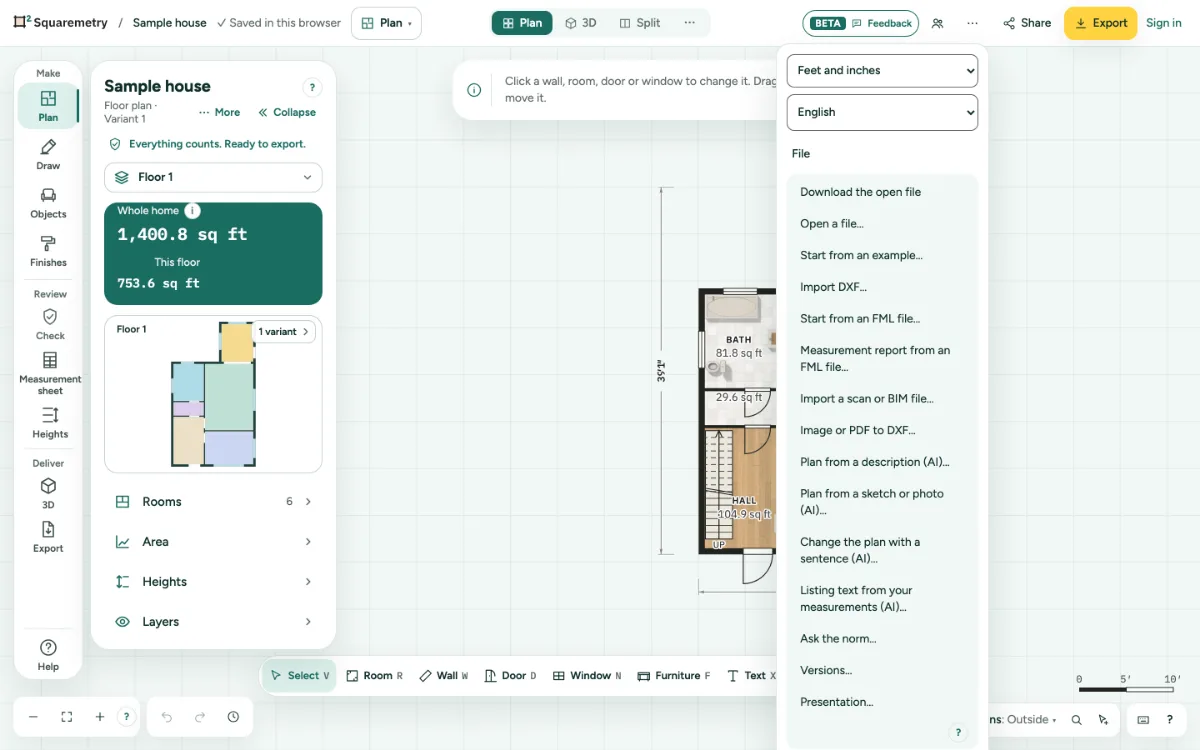
Save your plan: step by step
1. It saves by itself
After a change the status shows ✓ Saved in this browser. When you come back, you see Welcome back. My house is as you left it.
2. Keep a copy as a file
Click … at the top right, open File and choose Download the open file. You get a .sqm file named after your plan, with the areas and the rule set. The .sqm format is open: its specification and a validator are at squaremetry.com/format/.
3. It opens with Select
A plan that already has walls opens with Select: a click chooses a wall or a room and never adds a wall. Press W to draw again. 3D, the section, the elevations and the Measurement sheet switch to Select too. An empty plan starts with Wall.
4. Open a plan file
Click … at the top right, open File and choose Open a file…, then pick a .sqm file. The plan is fitted to the screen next to the panels. Undo brings your previous plan back. The plan goes into the home you have open, which keeps saving to your account; if the file belongs to another home in your account, you are asked first: Put it in this home as a copy, or Open that home. A file that is not a plan, is damaged or is over 20 MB is not opened.
5. When a plan does not open fully
A plan saved in this browser that goes past the limits of a plan opens with everything that fits, and a message says what was left out or limited. The original stays as a copy in this browser: click … at the top right, open File and choose Restore the kept copy to put it back. Undo reverses that. A plan this version cannot open at all shows Restore copy, which downloads the copy as a file.
6. When the browser blocks storage
Private windows and full or blocked storage can forget plans. You then see This browser may not keep your plan. Download the open file to keep it.
7. Two tabs at once
Only one tab can change the plan. The other shows This plan is open in another tab. Here you can only look. Click Edit here to work in that tab.
Parts on the screen
Save status. Says where your plan is kept: in this browser or in your account.
Messages you may see
- Not saved · this browser blocks storage
- This is not a Squaremetry plan. Open a file that ends in .sqm.
- This plan was made with a newer version of Squaremetry. Reload the page and try again.
- Your saved plan could not be opened. A copy stays in this browser and is not overwritten, so nothing is lost.