On an iPad or Android tablet you get the full editor, upright and on its side. Draw with a finger or a pen, zoom with two fingers, and use a keyboard if you have one.
On the iPad and other tablets: step by step
1. The editor on a tablet
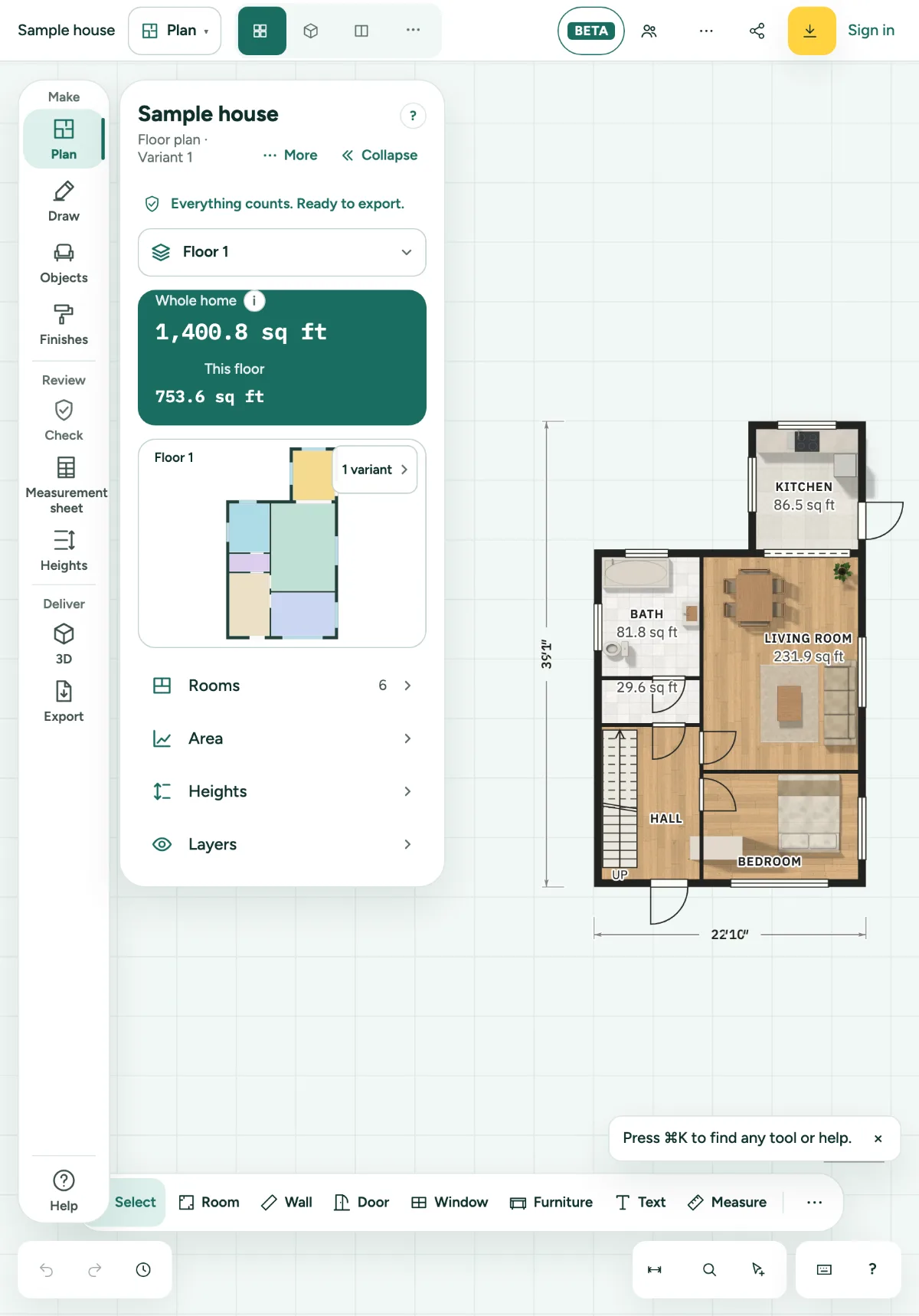
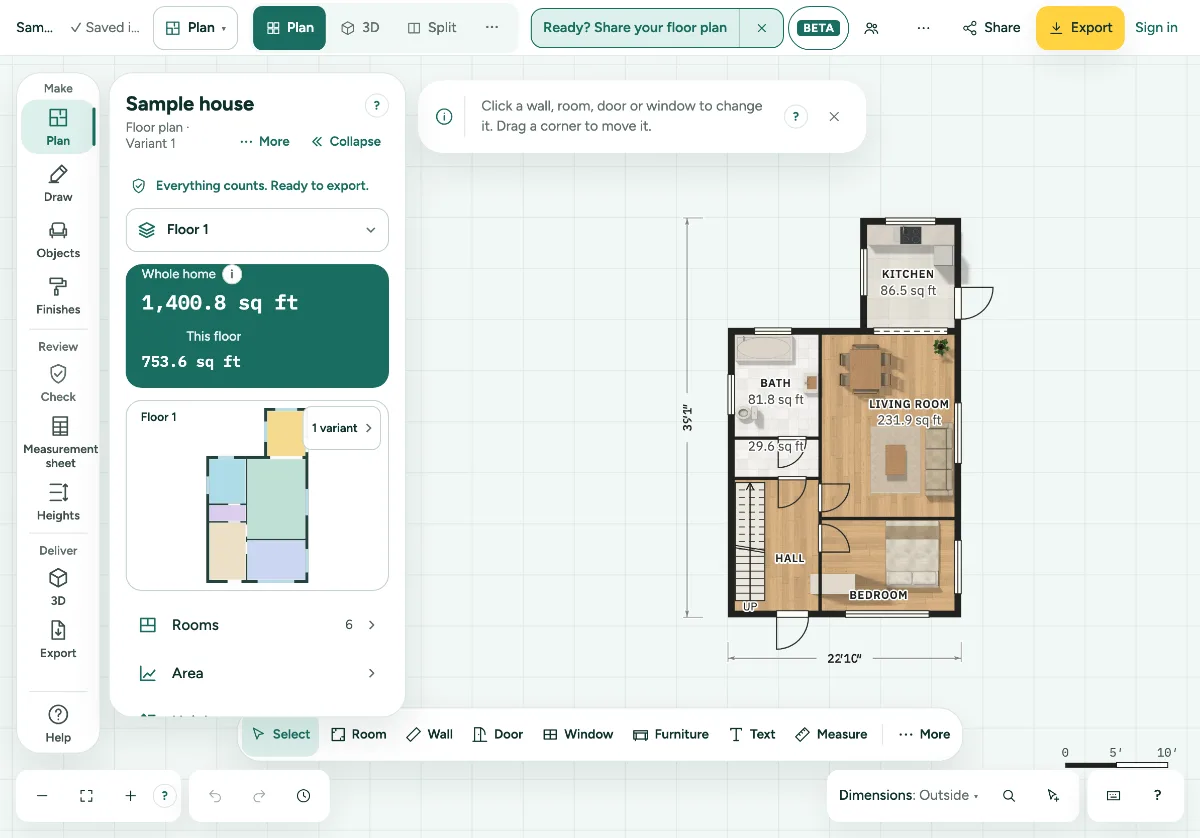
The same panel, toolbar and corners as on a computer, with buttons of at least 44 points, big enough for a finger. Upright the toolbar sits just above the corners, so nothing overlaps. Smaller than 700 points wide, as in a narrow Split View, you get the phone layout.
2. Fingers
One finger draws with the tool you chose. Two fingers zoom and move the drawing; the page itself never zooms. Hold one finger still for half a second to open the menu of what is under it.
3. Apple Pencil and other pens
A pen draws exactly where it touches, like a mouse. While the pen is on or just above the screen, and half a second after, a hand resting on the screen does nothing: no point, no zoom, no menu. Two fingers work again as soon as the pen is away.
4. Collapse the panel
Upright the drawing is narrow next to the panel. Tap Collapse at the top of the panel: only the narrow rail stays, and a tap on a section opens the panel again. When the rail is hidden in Customize bar, only the name of the home and Show panel stay; tap Show panel to get everything back. This device remembers your choice.
5. Keyboard on the iPad
With a Magic Keyboard or another keyboard every shortcut works: W for Wall, V for Select, ⌘Z to undo and ⇧⌘Z to redo.
6. Split View and Stage Manager
Make the window narrower or wider whenever you like. The editor adjusts while you work and nothing is lost, also not what you can undo.
7. A call while you draw
If a call comes in or you switch apps, the step you were halfway through is undone and everything else is saved on this device straight away.
Shortcuts
- W
- Wall
- V
- Select
- ⌘Z
- Undo
- ⇧⌘Z
- Redo
On Windows and Linux, use Ctrl where the Mac has ⌘.