Lay out drawing sheets for a client, a builder or an appraiser: paper up to A0 and ARCH E, a title block, and views of the plan that stay live. Change a wall and every sheet follows. Export all sheets as one PDF, or a PNG or SVG per sheet.
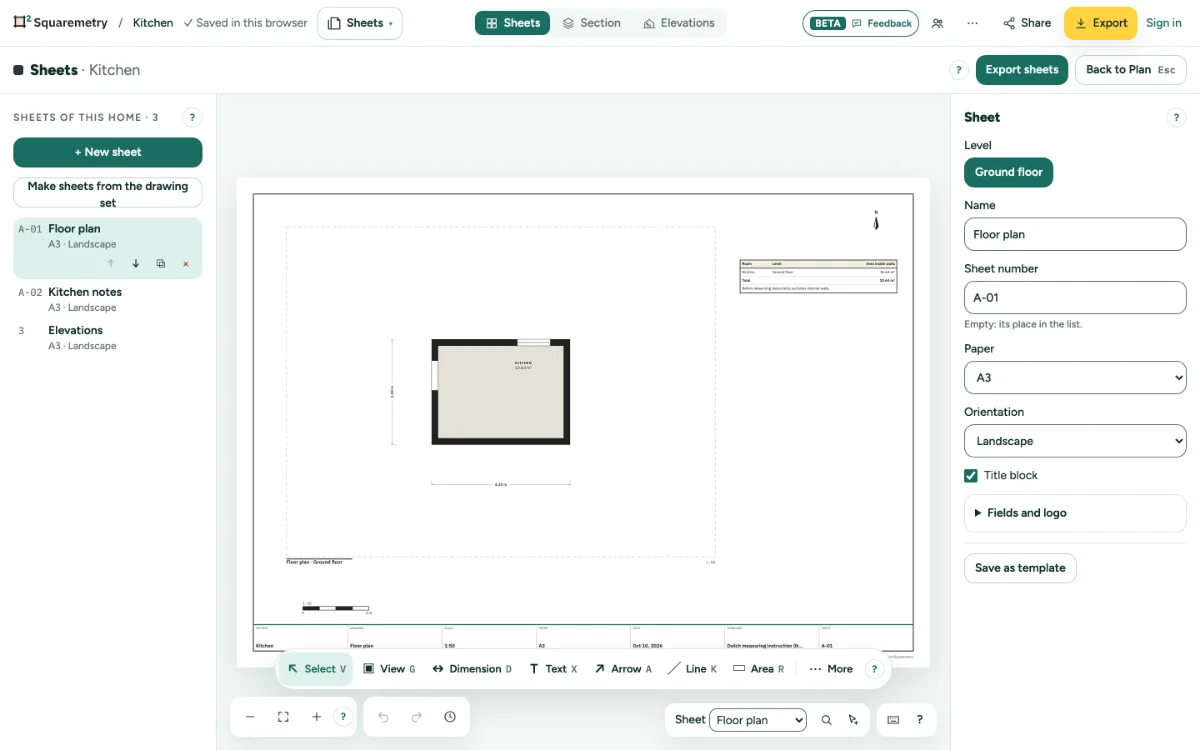
Sheets: drawing sheets with live views: step by step
1. Open Sheets
Pick Sheets in the Workspace menu at the top left, or press ⌥3. Sheets opens below the same top bar with its own tools, and Section and Elevations are views next to it; Back to Plan or Esc takes you back.
2. Make sheets
Click New sheet and pick a template, or click Make sheets from the drawing set: every sheet of the drawing set becomes a sheet with a live view. If this plan already has sheets, you are asked before adding another drawing set alongside them. Cancel keeps the existing sheets; Undo removes an added set in one step. The sheets are listed on the left; click one to open it.
3. The sheet itself
With nothing chosen, the card on the right is the sheet: name, sheet number, paper, landscape or portrait, and the title block with project, client, drawing, scale, paper, date, standard and sheet number. Choose a smaller paper or turn it, and whatever no longer fits moves onto the paper, smaller only when it is larger than the paper; a message says how many, and ⌘Z puts them back.
4. One history
Every change on a sheet is one step in the same history as the drawing: ⌘Z works here too, also after you went back to the plan.
5. Export
Click Export sheets. Choose all sheets or only this sheet, and PDF (all in one file), PNG or SVG (one per sheet, together in a ZIP). The files show exactly what you see, with your house style when you have one. Exporting sheets needs an unlocked home, Pro or Team. Without Pro, a sheet as PNG is at most 3840 pixels (4K) on its long side. PDF and SVG stay sharp at any size. A sheet without a floor plan view of this home that is visible on the paper (at least 1 cm) gets the free mark; the window names that sheet before you download.
6. DXF and a selection
DXF, one per sheet, gives the paper at full size for CAD: the frame, the title block, each view cropped to its frame and everything you drew, each kind on its own layer. Choose something on the sheet first and Only what is chosen exports just that, on its own piece of paper with a 10 mm margin, as PDF, PNG, SVG or DXF. Every sheet export, also Only what is chosen, needs an unlocked home, Pro or Team; without it Download is off and the window says why before you click.
Shortcuts
- ⌥3
- Workspace Sheets
- V
- Sheets: select
- G
- Sheets: add a view
- D
- Sheets: dimension
- X
- Sheets: text
- A
- Sheets: arrow
- K
- Sheets: line
- R
- Sheets: area
- I
- Sheets: image
- ⌘Z
- Undo
- Esc
- Stop, then Select, then let go
On Windows and Linux, use Ctrl where the Mac has ⌘.
Messages you may see
- There are no sheets to export. Add a sheet first.
- You have 100 sheets, the most for one home.
- Draw a room first: the drawing set has no sheets yet.
- DXF for CAD is part of Pro and of a paid home.
- There is nothing to draw in DXF here. Images do not go into DXF.