Skip to the content
FIRST HOME FREE 30 days of exports without the mark, no card
Modelling in 3D

Model: erase edges and faces

Guide: Model: erase edges and faces · · 1 min read

Click edges or faces to take them away. Erasing an edge between two flat faces joins them into one.
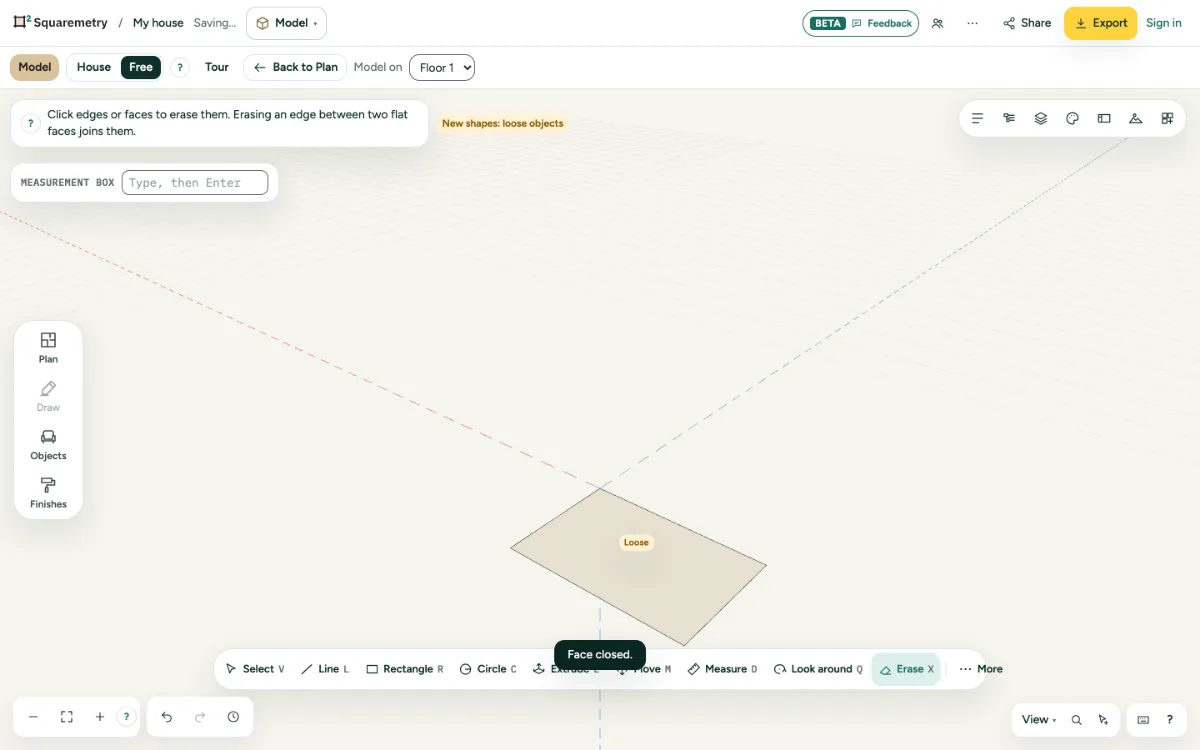
A block with an edge erased, the faces joined.

Model: erase edges and faces: step by step

  1. 1. Erase

    Press X and click edges or faces. A face without its edge goes too.

  2. 2. What you chose

    Or choose things and press ⌫, or use Erase in Properties.

  3. 3. Smooth instead

    To hide an edge but keep the faces apart, choose it and use Smooth or Hide in Properties.

Shortcuts

X
Model: erase
⌫
Delete what is chosen

Messages you may see

  • Erased. Undo brings it back.

Related

Still stuck?

Questions about “Model: erase edges and faces”? Send us a message and tell us what you tried. We will help you from there.

Start with your first floor plan

Your first home is free for 30 days, no card needed. After that: $5 per home, or Pro from $24 a month.

Start for free

or sign in with a code by email