Hold the button and drag a loose line on the ground or on a face. End on the start and it becomes a face, like a line you click.
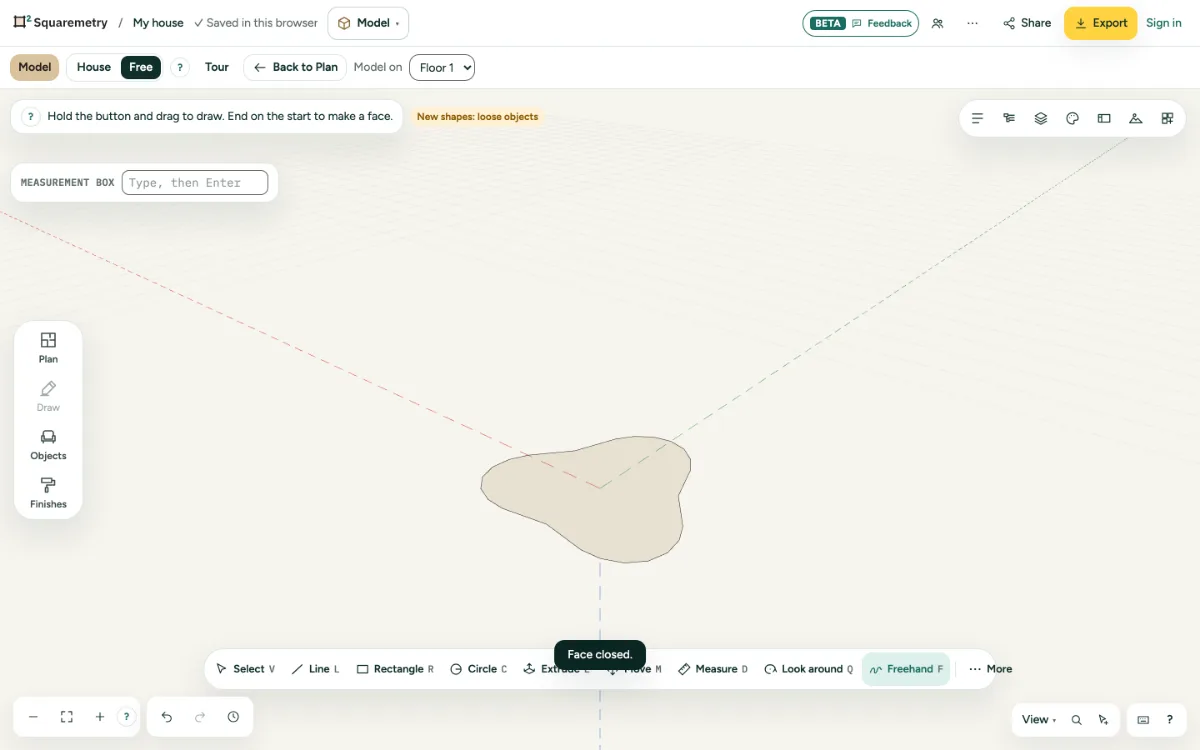
Model: draw freehand: step by step
1. Choose Freehand
Press F, or open More in the bar at the bottom and click Freehand under Draw. The line follows the face where you start, or the ground.
2. Drag and let go
Hold the button and draw. When you let go, the line is made simpler: as fine as you can see on the screen at this zoom. Zoomed out it has fewer points.
3. Close it for a face
End close to where you started and the line closes into a face. A line that crosses itself is split at the crossing, and a loop in it becomes a face.
4. Undo or stop
The whole line is one step: ⌘Z takes it away. Esc while you draw throws the line away.
Shortcuts
- F
- Model: freehand
- ⌘Z
- Undo
- Esc
- Stop, then Select, then let go
On Windows and Linux, use Ctrl where the Mac has ⌘.
Messages you may see
- Face closed.
- Line drawn.
- Too short to draw. Drag a little further.
- Stopped. Nothing was drawn.