A group keeps faces together and apart from the rest. A component is a group with copies that change together.
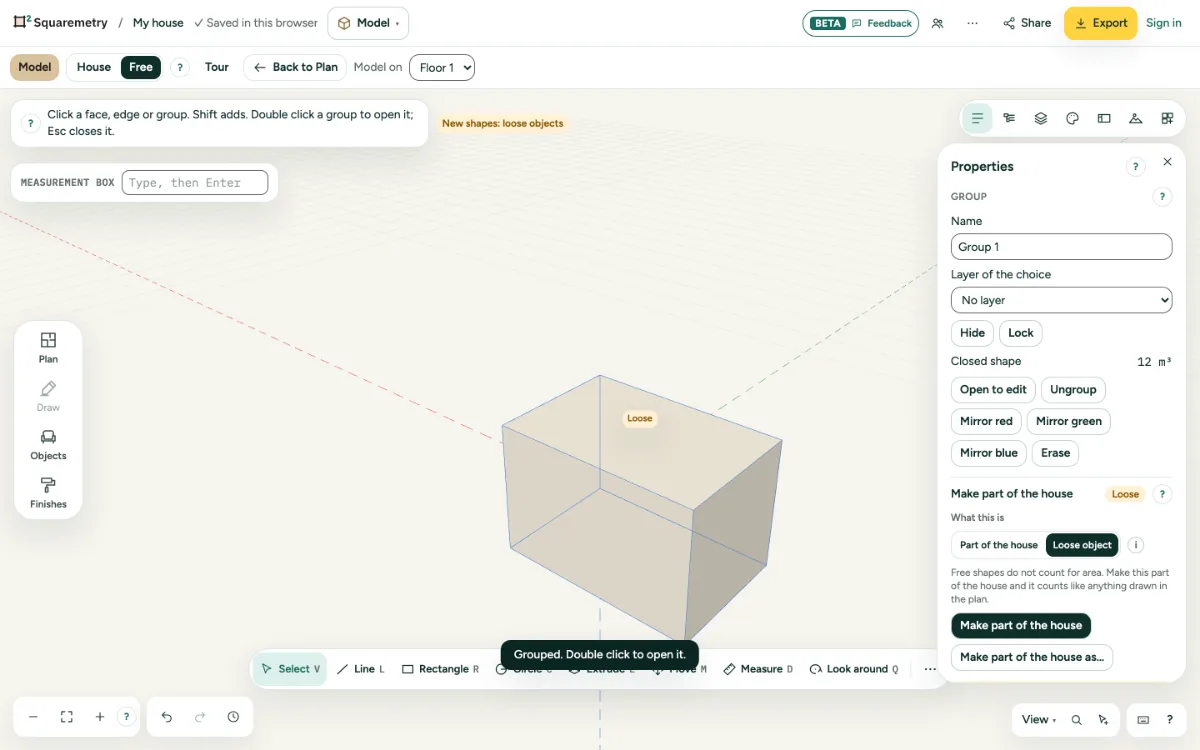
Model: groups and components: step by step
1. Group
Choose faces and edges (click three times for a whole shape) and press G. ⇧G makes a component.
2. Edit inside
Double click a group to open it; the rest fades. Esc closes it. In a component every copy follows.
3. Copies and unique
Copy a component with Move and Ctrl. Make unique gives one copy its own shape. Ungroup turns it back into loose faces.
4. Name, layer, lock
In Properties, give it a name and a layer, hide it or lock it. Mirror red, green or blue flips it. A locked group stays as it is: you can not choose, move, turn, scale, mirror, erase, paint, ungroup, open or delete it, also not with its floor, building or variant. A group with a locked group inside can not be chosen either; you can open it, and inside the lock holds for that one group. Turning or mirroring the plan, moving a building or aligning a floor takes a locked group along. If a step would change a locked group, a message names it and nothing changes; Show lock takes you to its lock in Overview.
5. A locked component
A locked component follows its other copies. If one copy should not change with them, choose Make unique first and lock it after that.
Shortcuts
- G
- Model: group what is chosen
- ⇧G
- Model: make a component
- Esc
- Stop, then Select, then let go
Messages you may see
- Grouped. Double click to open it.
- Component made. Copies of it change together.
- Locked. Unlock it in Overview.
- Locked. Copies of this component still change together.