Click to choose a face, an edge or a group. What you choose is what Move, Rotate, Scale and Properties work on.
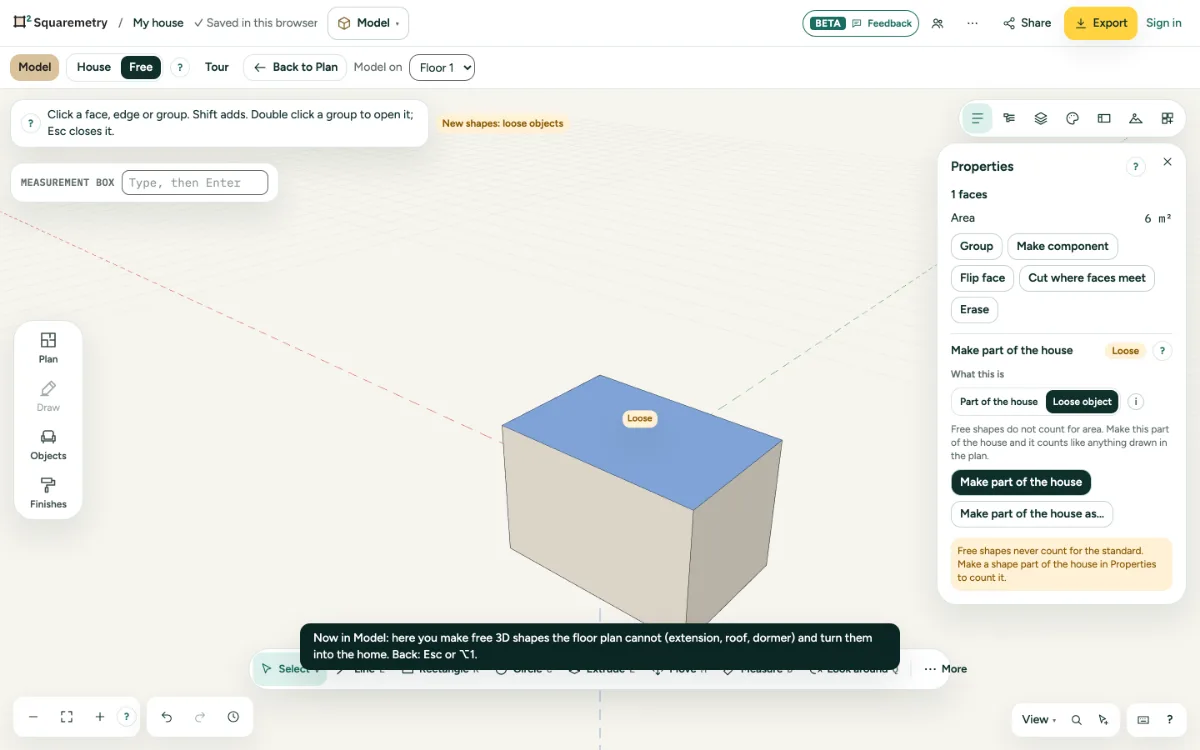
Model: select faces, edges and groups: step by step
1. Click
Press V and click a face, an edge or a group. Shift adds to the choice or takes away.
2. Double and triple click
Double click a face to take its edges too. Click three times to choose everything that is joined to it. Double click a group to open it.
3. Everything
⌘A chooses everything in what is open. Click in empty space, or press Esc, to choose nothing.
4. The house
Click a wall or the roof of the house to see that it counts. From there you can make it a free shape (see Build onto the house, or model freely).
Shortcuts
- V
- Model: select
- ⌘A
- Select all
- Esc
- Stop, then Select, then let go
On Windows and Linux, use Ctrl where the Mac has ⌘.
Messages you may see
- Choose something first.